
Spotlight functions as the search interface within Mac OS X, providing instant access to files, software programs, and system information. Your Mac functions similarly to a librarian, which understands file locations exactly. The extension within Spotlight functions as supplementary capabilities added by third-party applications, including Photoshop and Microsoft Word. These helpers instruct Spotlight about the process of searching file contents within an application. An extension from a notes application enables Spotlight to scan through the note content.
Your Mac system adds the Spotlight extension during the installation process of apps that include this functionality. These extensions are hidden inside the app’s folder and end with “.mdimporter.” They make searching faster, but might also share details about how the app works.
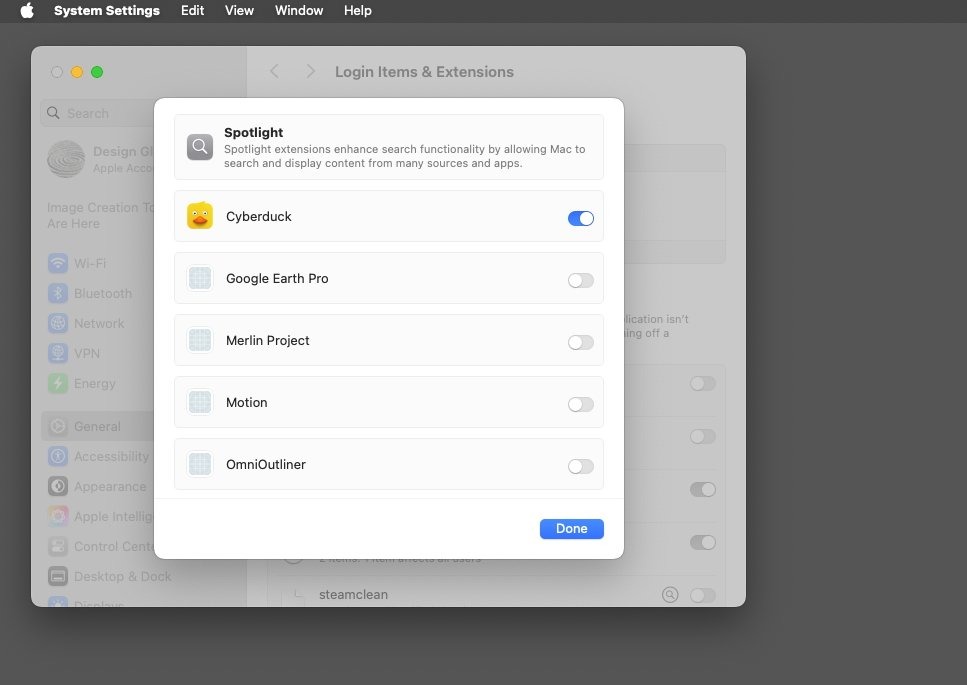
Why Adjust Spotlight Extensions?
You might want to turn some extensions off for three main reasons
- Privacy: Stop apps from telling Spotlight how their data is organized.
- Speed: Reduce background work if your Mac feels slow.
- Cleaner Searches: Hide app-specific details you don’t need.
Turning off an extension doesn’t stop Spotlight from finding the app’s files. It just stops Spotlight from understanding the app’s secrets, like how it sorts notes or tags photos.
How to Turn Spotlight Extensions On or Off
Follow these easy steps in macOS Sequoia
- Click the Apple logo in the top-left corner and open System Settings.
- Click General in the sidebar, then choose Login Items & Extensions.
- Select Spotlight from the list and click the small Info (i) button.
- Toggle the switches next to each app to enable or disable its extension.
For example, if you turn off a PDF reader’s extension, Spotlight can still find your PDF files by name, but won’t search for text inside them.
What Happens When You Disable an Extension?
Disabling a Spotlight extension is like removing a translator. Spotlight can still “see” the app’s files, but won’t understand their details. Here’s what changes
- You can search for the app’s files by name or basic info.
- You won’t see results from inside the app’s special data (like tags or notes).
- Your Mac might run slightly faster because it’s doing less work.
Tips for Advanced Users
If you are comfortable with Terminal (a tool for typing commands), you can use these tricks
- Type mdutil -i off /folder/path to stop Spotlight from indexing a folder.
- Use mdfind “search term” to search files directly in Terminal.
Developers can build their own extensions using Apple’s tools, but that’s for tech experts.

Take Control of Your Mac’s Search
Your Mac is designed to work the way you want. Spotlight extensions are controlled through your management decisions regarding which apps can interact with Spotlight. Creating these limits supports both quick searches and private information safety. Your Apple Mac will perform better through several small modifications that greatly enhance its functionality.
A Friendly Reminder
The modification of Spotlight extensions through only a few minutes of work allows you to personalize your Mac. Check how your interaction with your system becomes better after you disable the extensions of applications that you usually don’t employ. Happy searching!