
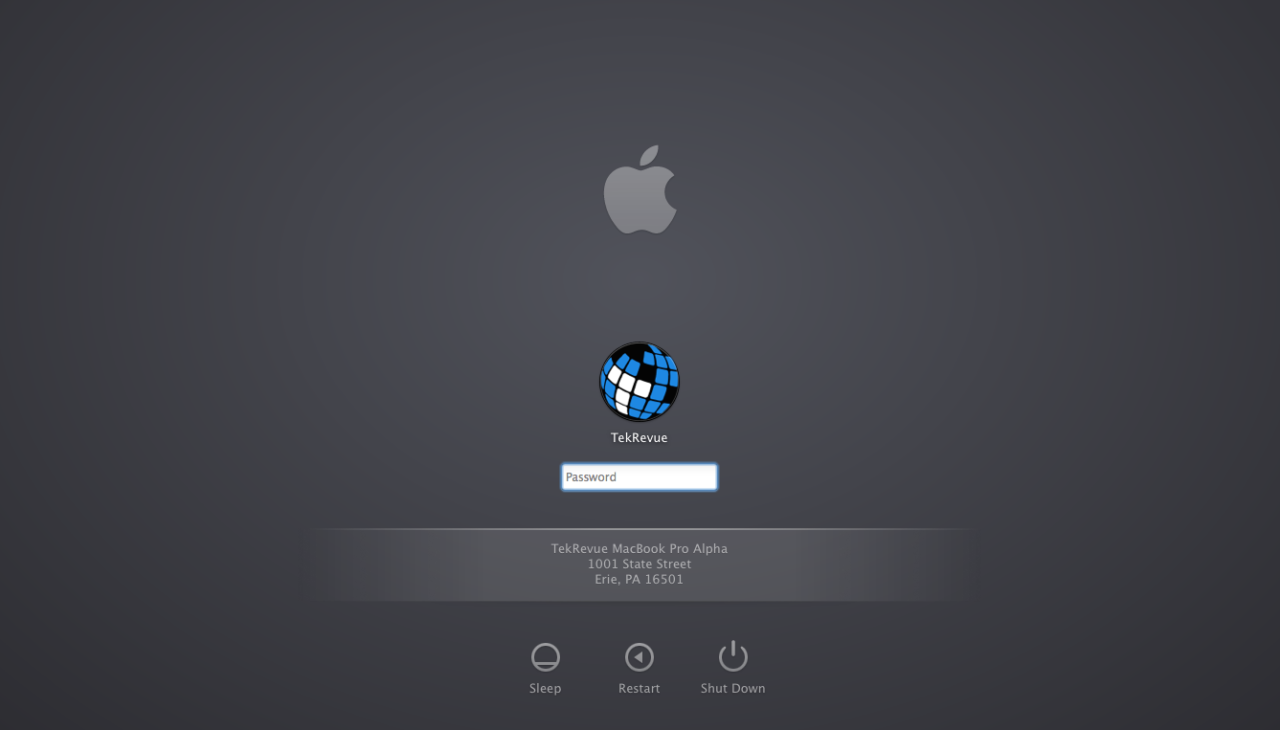

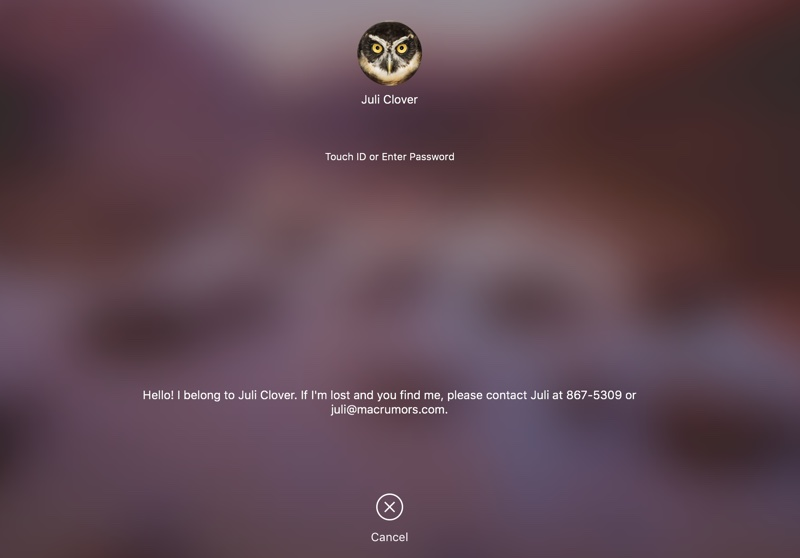
A lock screen message can help you and others at a glance. It can show contact details for a lost Mac. It can give a short reminder that you will see when you sign in. It can note which department or room owns the device in a workplace. The feature can warn users that a screen may be monitored.
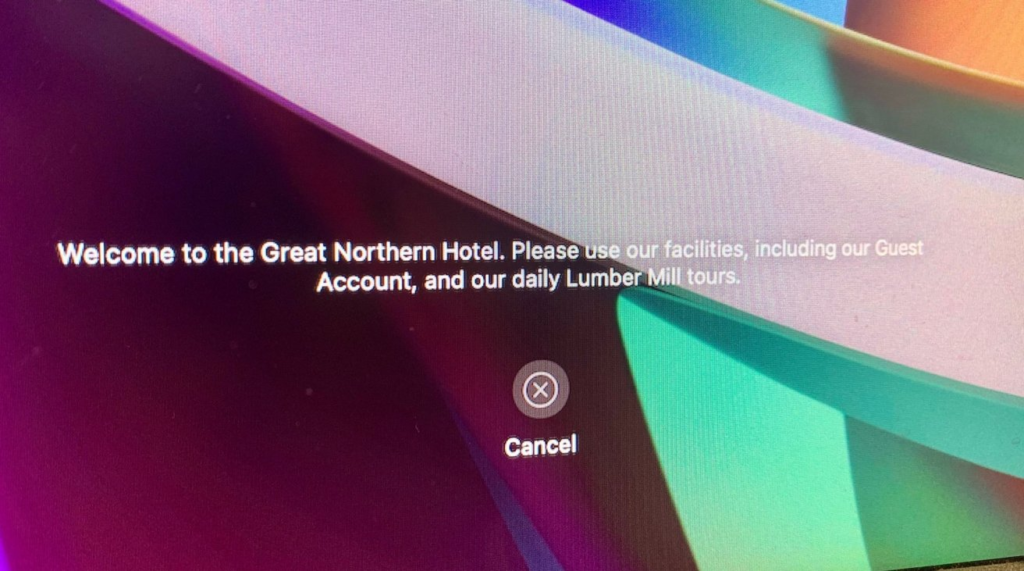
Set a Lock Message
Open System Settings on your Mac. Click Lock Screen in the sidebar. Turn on the toggle that shows a message when locked. Click the Set button next to the toggle. Type the text you want to appear. Keep the text short and clear. Click OK to confirm. Lock the Mac to check how the message looks. You can edit the message at any time by returning to System Settings and the Lock Screen pane and tapping Set again.
Here are simple rules for a good message. Use a single line for contact details. Use plain language for a reminder. Avoid private data you would not want visible to others. Test the message on your lock screen to confirm readability.
Remove a Lock Message
To remove the message, open System Settings and go to Lock Screen. Turn the show message when locked toggle off. That will remove the message for most users. Some Macs in managed environments may keep the message because a profile or a management tool set it. For those cases, use the macOS Terminal command below.
On the Mac Open Terminal and type in the following line as it appears. You will be required to have an administrator account, and you will be requested to enter your password.
sudo defaults delete /Library/Preferences/com.apple.loginwindow LoginwindowText
Press return to run the command. The command clears the saved login message. Restart the Mac and check the lock screen. This Terminal method works when the message is stored in the system preferences file. Use caution with Terminal. A wrong command can change other settings.
Notes for Managed Macs and Profiles
Managed Macs that belong to a company or a school may have profiles that set the lock screen message. Removing those messages may require unenrolling the device or working with IT. Some users report that a message can persist even after leaving a managed environment. In those cases, document the situation and contact the administrator who manages profiles.
Backup and Audit Advice
Back up important work before making system changes. Export or copy any text you will want to reuse. Keep a small log of changes you make to system settings when you test things. That log helps you or an IT contact undo changes if needed.
Quick Checklist
Open System Settings. Select Lock Screen. Turn the show message toggle on or off. Use Set to enter text. Use the Terminal command shown above for stubborn messages saved at the system level. Confirm the result by locking and unlocking the Mac.
This lock screen message feature is small but useful. It also assists in missing gadgets and regular reminders. The steps are compatible with the current macOS versions, which have a Lock Screen pane in System settings.







