

Apple has added a version history feature to the Passwords app in macOS Tahoe. The feature keeps older passwords and shows when each change happened. It helps when a password was overwritten or when a reset took place on a different device.
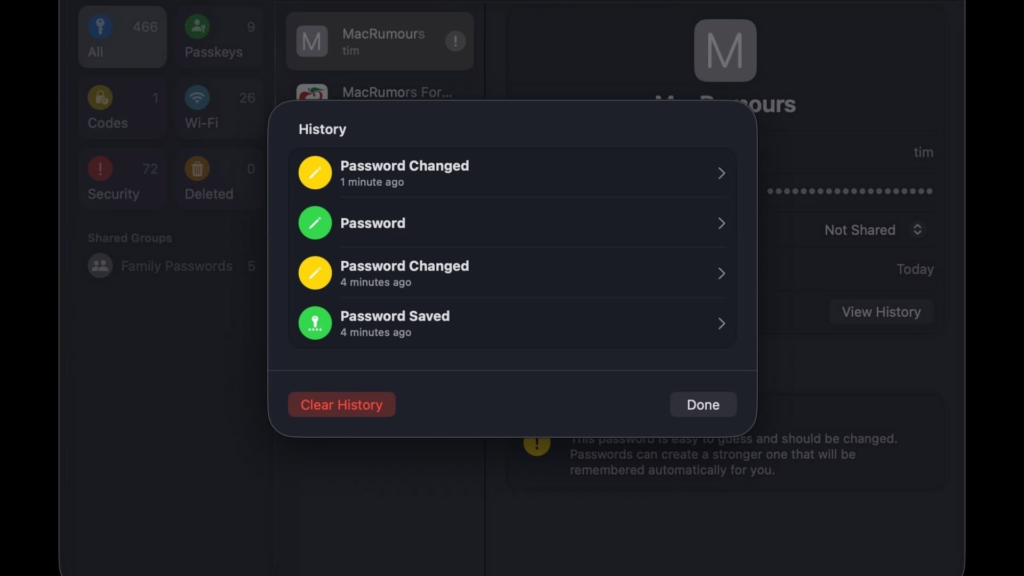
The feature is simple to use. Open the Passwords app on your Mac. Find the login entry for the site or app you need. Look for a View History button at the bottom of the entry. Tap that control to see a list of saved and changed passwords with dates and times. The list shows the first saved password and then later entries marked as password changed.
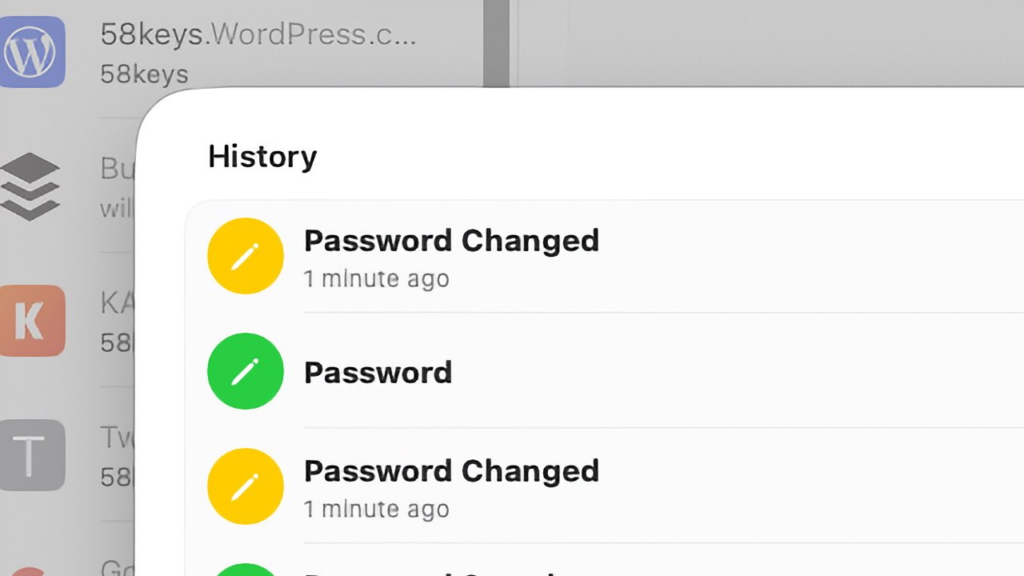
Many people will only discover View History when they need it. The option only appears when a password has an actual history of changes. That design keeps the interface tidy for accounts that never changed. When history is present, you see clear markers for each event, and you can reveal the saved password just as you would for a current entry.
View Password History
Viewing the history shows two useful pieces of information. First is the time when a password is changed. Each entry lists how long ago the change occurred. Second is the ability to reveal the exact string that was saved at that time. Each saved password version is stored securely, and you can click the Show button to view it after authenticating on your Mac. That view helps when teamwork or poor connections create multiple resets.
The history also records shared actions. If you shared a password with a colleague or via a shared group, the log will show when the sharing was added or removed. That makes it easier to track which changes came from a team member and which came from your own resets. The presence of shared records helps in workplaces where a password is used by multiple people.
Recover Old Password
Restoring a previous password is manual. Use the Show control to read the older string. Then paste it into the site login or into the Passwords entry as needed. Apple does not automatically roll back a saved value. The app allows one to see, verify, and proceed. That way, no surprises can occur, and it allows the user control of which version to be restored.
There is also an option for Clear History. The control removes the record of old versions for that entry. Most users will want to avoid clearing the history. The old passwords remain encrypted and secure inside the Passwords database. Keeping the history can save time and avoid repeated resets when you discover a mismatch between devices.
Why this helps
One common scenario is that a user resets a password on a public device and then cannot remember the new string on their own Mac. Without history, the user would have to run another reset on the primary device. With history, the user can open Passwords and read the most recent saved password that the app recorded. That single step can prevent extra resets and lost time. AppleInsider explained the feature and showed how it closes this small but annoying gap.
The history feature also brings Apple closer to functions found in higher-end password managers. Some third-party apps have offered version history for some time. The built-in Passwords app now includes a simple version that covers many everyday cases. The Apple approach keeps data inside the system keychain and syncs changes across devices signed into the same Apple ID.







