
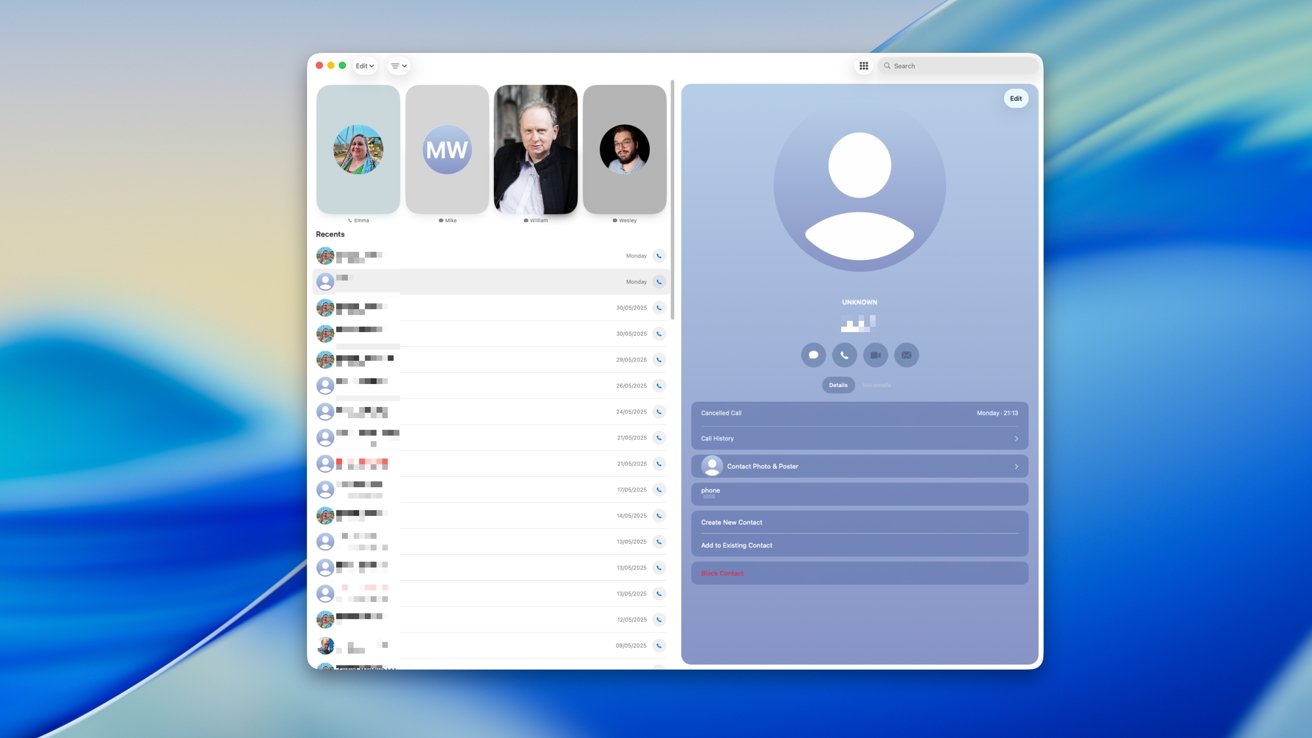

Apple has given the Mac a proper Phone app in macOS 26 Tahoe. This app makes phone calls on the Mac feel like a core feature rather than a hidden trick inside FaceTime. The app syncs recent calls, contacts, and voicemails from an iPhone and adds new tools such as Call Screening, Hold Assist, live voicemail transcripts, live translation, and one-click recording.
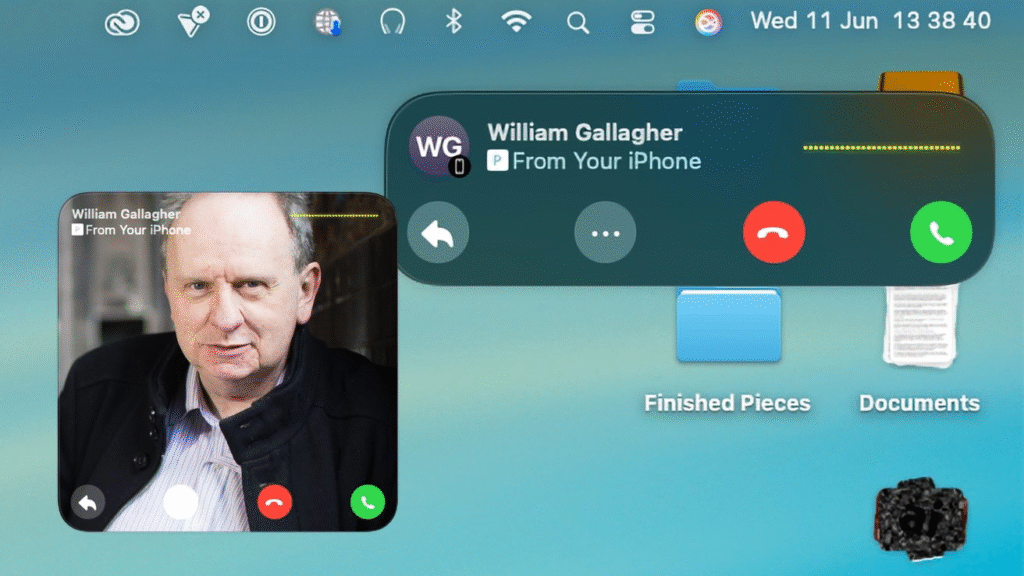
The Phone app looks and feels like the iPhone counterpart. You can dial with a keypad, click a contact, or use search. Calls route through your nearby iPhone but use the Mac microphone and speakers. That makes the Mac work as a desk speakerphone while the iPhone still handles the cellular connection.
Phone App Features
The Phone app brings features that matter for daily use. Voicemails sync across devices and show transcriptions you can read. Live Voicemail shows a real-time transcript while someone is leaving a message, so you can decide whether to answer. Call Screening will auto-answer unknown numbers and ask the caller to state why they are calling. The reply appears as text on screen, so you can accept or decline. Hold Assist watches calls on hold and alerts you when a real person picks up. Live Translation can translate a two-person call in supported languages so both parties can speak in their own tongue and still understand each other. Recording lets you save a call and a transcript to Notes if local law allows recording in your region. These additions make the Phone app useful for work and for personal calls.
Apple ties many of the intelligent features to Apple Intelligence. Live Translation and some screening workflows are used on device models on supported Apple Silicon Macs. Some older Intel Macs get the basic Phone app functions, but they do not get the full Apple Intelligence features. Check Apple pages for the latest list of supported devices and languages.
How It Works
The Phone application does not give your Mac its own phone number. The Apple ID should be the same on both gadgets, and your iPhone must be within the proximity of the same Wi Fi network. The Mac commands the iPhone to either accept or make a call. The carrier work is done by the iPhone, and the audio is streamed into the Mac. It is possible to transfer calls between a Mac and an iPhone and vice versa, provided the two remain connected. Continuity calling requires your devices to be signed into FaceTime to be able to make and receive calls, but it still uses the trust and routing back end, so you need to be signed into FaceTime on both of your devices.
In order to configure the feature, you typically need to turn on FaceTime on the Mac in Calls from iPhone and on the iPhone in Calls on Other Devices. Bluetooth facilitates finding and transferring, but Wi Fi transfers the audio. When the iPhone is too distant, the connection may fail. IT policies can also influence the setup of enterprise and managed accounts. At Apple, there are step-by-step support pages that provide a step-by-step guide on the settings in case you get stuck.
Quick setup checklist
Install the latest software versions in both devices. Log in with the same Apple ID and use FaceTime on both phones. Calls on the Mac Switch Calls on the iPhone and Calls on the iPhone Allow Calls on Other Devices. Make sure that the two gadgets are connected to the same Wi Fi network. Open the application on a Mac phone and give the permissions.
Where to get help
Check Wi Fi, Sign-in status, and FaceTime settings on both devices in case setup fails. Most of the problems can be addressed by restarting FaceTime and the phone app. In case of any problems, follow the Apple Support pages or visit an Apple store to get personal assistance. In case of enterprise structures, do not alter the settings of the devices without consulting your IT administrator.
This new Phone app transforms calling a secret FaceTime feature into a first-class Mac application. It simplifies making calls and provides features that help to conserve time. The Mac the Phone app is worth installing in case you spend most of your time on a Mac.







