


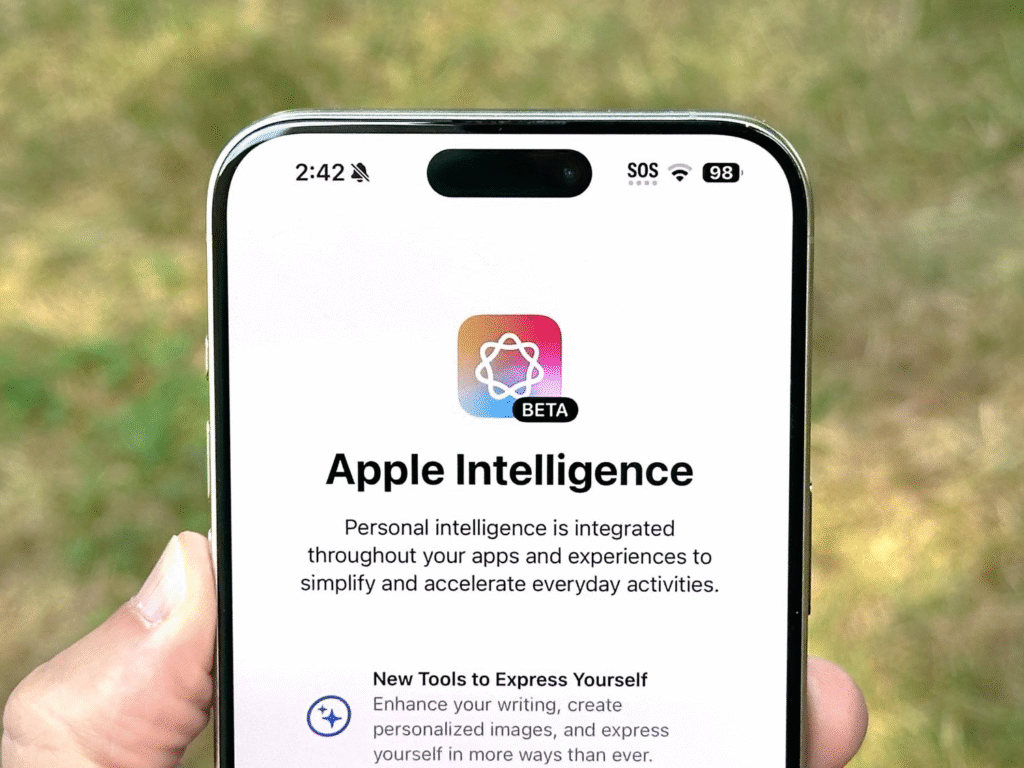
Apple has added Apple Intelligence into the Shortcuts app. This change makes Shortcuts able to think about your content before it runs the next step. You can make Shortcuts that summarize notes, clean up transcripts, suggest recipes from a pantry list, or write quick emails. The new tools run on devices or in Apple’s private cloud systems, and they work across iPhone, iPad, and Mac.

Add Apple Intelligence
Start by opening Shortcuts and creating a new shortcut. Tap Add Action and choose the Use Model action. The Use Model action is the Apple Intelligence step that lets the shortcut ask an AI model to do a job. Give the action a simple instruction. For example, you can tell it to summarize text or to make a short list of steps from a long note. Keep the instructions plain and short. Pass the result to the next action so the shortcut can save or send the output. Apple describes these tools and how they join Shortcuts.
You can run the Use Model action in three ways. You can run it on a device for fast private results. You can use Apple’s private cloud computing for more complex work while keeping a higher level of privacy. You will also have the option of connecting to the third-party models should you require a capability that is not available with Apple. Select the mode that suits you and your privacy.
Create a follow-up after the AI response. Follow Up lets you change the output without editing the whole shortcut. Ask the model to make it shorter or to change the tone. The Follow Up step makes it easy to refine results on the fly. This keeps your shortcut useful even when the data you feed it changes.
Make Useful Shortcuts
Pick two or three shortcuts to add Apple Intelligence to at first. A good starter is a summary shortcut. Add an action to fetch a document. Add Use Model to make a short summary. Save the summary to Notes or send it as an email. Test the shortcut and try the Follow Up feature until the phrasing is right.
A second idea is a recipe helper. Get your grocery list. Run Use Model to suggest quick recipes that use only what you have. The action can return a shopping list for missing items. You can then trigger a message that sends that list to a family member. This saves time and reduces waste.
A third idea is a meeting note cleaner. Record a short voice memo. Add a step to transcribe it. Run Use Model to remove filler words and to extract action items. The shortcut can then create a calendar task or send the action list to teammates. These automations remove manual work and let you focus on the core task.
Apple lists compatibility and the general features of Apple Intelligence on its product pages. Devices with Apple silicon or newer chips get the most capable models. On-device results stay on your device. Private cloud computing keeps data private while giving you stronger results. Use the mode that fits the job.
Safety and limits
Apple Intelligence can save time, but it can also make errors. Always check critical outputs before you use them. Summaries can miss details, and recipe steps may assume an ingredient that you do not have. If your shortcut uses private data, prefer on-device or private cloud compute. Apple explains the privacy options and points to the best ways to keep user data safe.







