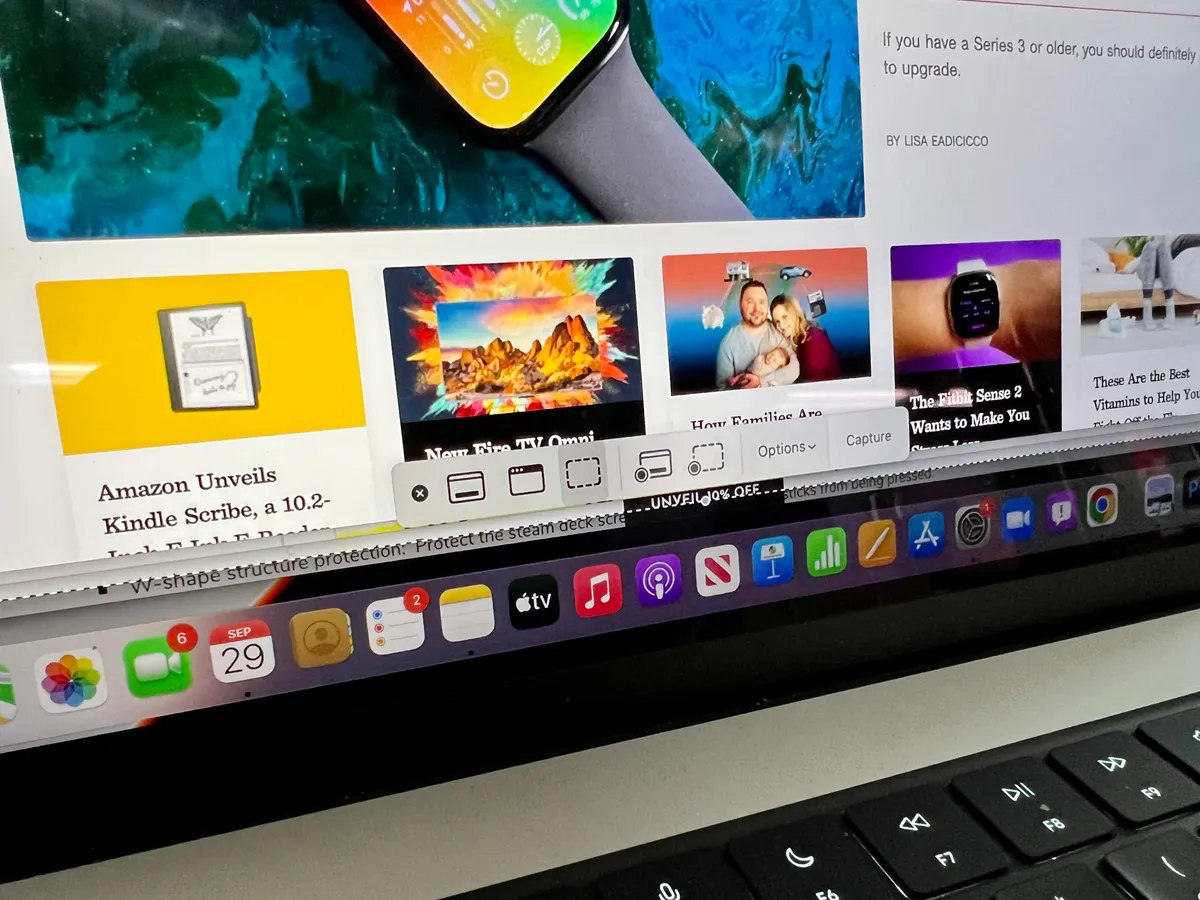

Capturing a sharp still from a YouTube video on a Mac is easy when you use the right method. The best result comes from copying the decoded video frame rather than taking a normal screenshot. That keeps the detail and avoids blur. This guide explains the fastest Chrome method and two reliable alternatives. It also shows simple tips to improve quality and how to respect creator rights.
Chrome Frame Capture
Play the video on YouTube using Google Chrome and move the play head to a few seconds before the point you want. Stop the video at the frame you would like. Right-click once on the video to show the player menu. Right-click again inside the video area until the Chrome menu appears. Choose copy video frame. The frame is now in the Mac clipboard at full player resolution. Open Preview and choose new from the clipboard or press Command V to paste. Save the image as a PNG for the best quality when the frame contains text or fine lines. Use JPG if a smaller file size is needed for photographic frames.
Alternate Capture Methods
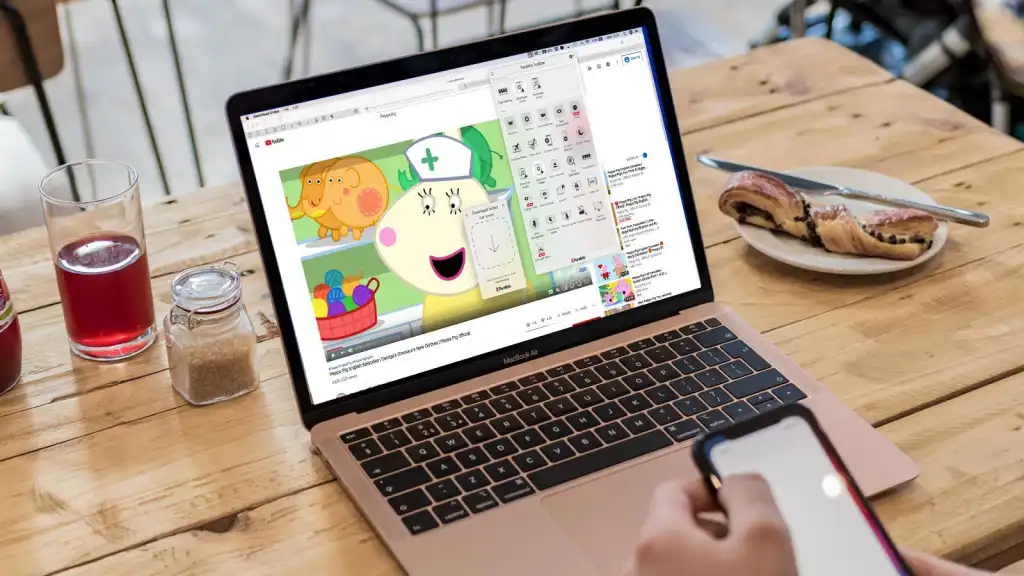
In case of the unavailability of the copy option in the Chrome menu, use QuickTime Player. Open QuickTime and record a short screenshot of the appropriate part. Close the recording and open it in QuickTime. Stop on the frame and press edit, then copy. Paste into Preview and save. Alternatively, there is the VLC media player. Watch the video, or it can be done in VLC. Hold on the frame and save a file in the snapshot too,l and save the file to the pictures folder. VLC is effective with the local files, as well as with those formats that do not allow copying frames in the browser.
Practical tips for better screenshots
Pause at a still moment. Motion blur in the original frame cannot be removed later. Set YouTube playback to the highest available quality before you copy. Higher playback gives more pixels to capture. Try full screen if you need slightly more detail. Full screen can increase the source pixels for the frame. Crop and make small edits in Preview to improve composition and clarity. Small sharpness or contrast adjustments help. Save as PNG for frames with text or fine lines, and save as JPG for general photos when file size matters.
Troubleshooting and limits
Some videos use protected playback and block direct frame copy in the browser. Use QuickTime or VLC in that instance. In case of failure of the paste, refresh the page or restart Chrome. You should check the video resolution and export it at the best source quality possible in case you need the frame to be published. Do not flout copyright regulations where frames are used by creators. The owner should be credited whenever you share the image, and permission should be obtained in case you intend to publish commercially.
What to do next
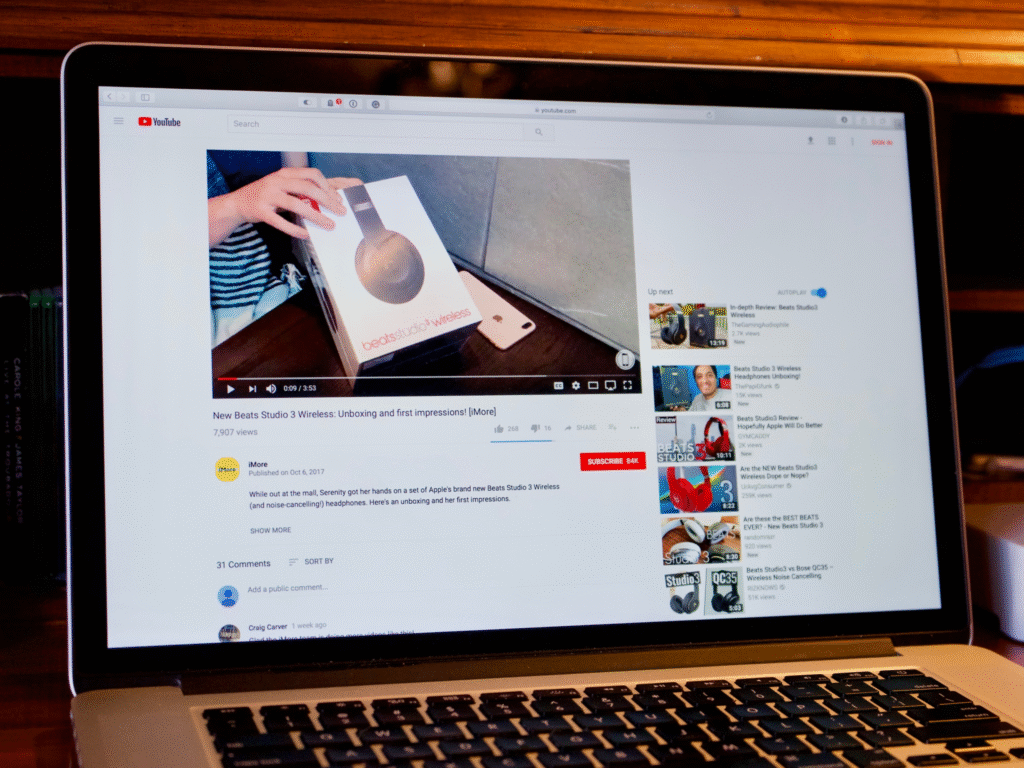
Test the Chrome process on a short clip and store off a few frames to compare quality. Assuming that you will take a lot of frames, it is better to record a short clip and then extract frames from the local file. Keep a small editing routine in Preview so you can crop and export consistently.