


Apple now offers a dedicated password app called Apple Passwords. If you use another password manager, you may want to move your saved logins into Apple Passwords. The import process is simple, but it requires a Mac. This guide explains what to do and what to watch for.
What Apple Passwords accepts and what it does not accept
Apple Passwords stores website and app login credentials. It does not yet store credit card data, software license keys, or secure documents. If you need to bring over other secure items, you will have to keep them in your previous manager or move them manually to a safe place.
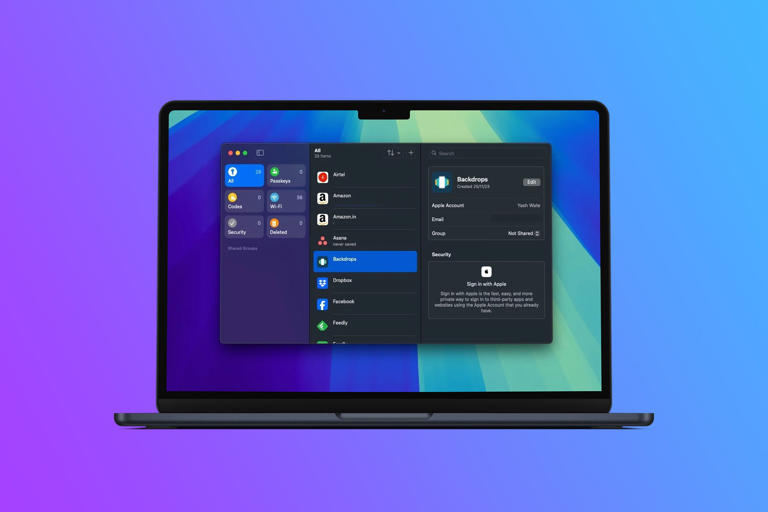
Why you must use a Mac to import
Apple currently supports importing password lists only from the macOS version of Apple Passwords. The iPhone and iPad apps cannot import a password file. If you do not own a Mac, you will need to use a Mac belonging to a friend or a family member, or a trusted work machine to transfer your passwords.
Prepare your export from the old manager
Sign in to your old password manager and export your vault as a CSV file. Choose the CSV option because that is the format Apple Passwords reads. Do not share that file. Treat it like plain text that contains every password in your account. Save it to a secure folder on the Mac before you begin the import.
How to import step by step on macOS
- Open Apple Passwords on the Mac that will do the import.
- In the menu bar, select File.
- Choose Import Passwords.
- Click Choose File and select the CSV file that you have exported.
- Wait to allow Apple Passwords to read the file and add entries in your vault.
- When the import finishes, review any items that Apple Passwords could not import. The app will list those for you.
After the import
Apple Passwords will sync your imported logins across your devices through iCloud if you have iCloud Keychain and iCloud sync enabled. Make a few check accounts to make sure that the usernames and passwords, as well as the sites, are correct. Remove or repair any duplicate entries and delete the CSV file in your Mac when you are fully confident that the import has been successful.
Tips for a smooth import
Export the required fields. Most managers give you the choice of selecting which columns to use. Fewer columns make it less likely that data will be mismatched. Examine the CSV in a text editor or spreadsheet program in order to relocate fields or scrub values. Clear all blank rows and then import it. When a row does not follow the format that Apple Passwords expects, that row may not be imported. Leave the CSV file on the Mac and remove it after the import has been finished.
Security and backup advice
Do not email the CSV file, and do not share it in a common cloud storage folder. Everything is in the file in plain text: all your passwords. It might be so important to make a secure backup of your Mac in case you are afraid about the loss of losing data. Once there is a successful import, then it is best to delete the CSV itself and empty the Mac trash to minimise potential recovery efforts.

What to do if items fail to import
If Apple Passwords shows entries that failed to import, open the CSV and inspect those rows. Compare the failed rows to the rows that imported correctly. Often, a missing username or a misplaced comma will stop a row from importing. Edit the CSV and try the import again for only the corrected rows.
Confirm sync and device access
After the import is done, check that your iPhone and iPad list the new logins. Go to Settings or System Settings and navigate to Apple ID and iCloud make sure that Passwords or iCloud Keychain is on. The sync process does not seem to work properly, signing out and logging back in to iCloud, and waiting some time before changes are synced.







