

TTB White LOGO TB
  • News
  • PC & Hardware
  • Mobiles
  • Gaming
  • Electronics
  • Gadget
  • Reviews
  • How To
  • Login
  • Sign Up
Trending
Starzspins Deutschland: Eine umfassende Übersicht über neue Spiele und ihre Features
Cazeus Casino Chile: guía completa para comenzar a jugar en 2026
Glorion Casino België: ontdek de spannende wereld van live casino spellen
Discover the advantages of using the FunPari O’zbekiston mobile app for instant access to
Rainbet Casino France : débloquez des bonus incroyables en 2026
Sunday, Aug 9, 2026
The Tech BasicThe Tech Basic
Font ResizerAa
Search
  • News
  • PC & Hardware
  • Mobiles
  • Gaming
  • Electronics
  • Gadget
  • Reviews
  • How To
Follow US
iPhone 17
The Tech Basic > How To > How to Customize iPhone 17 Camera Control Button Easily
How To

How to Customize iPhone 17 Camera Control Button Easily

Salman Akhtar
Last updated: 19 September 2025 16:06
Salman Akhtar
Share
Image Source: gadgethacks
SHARE

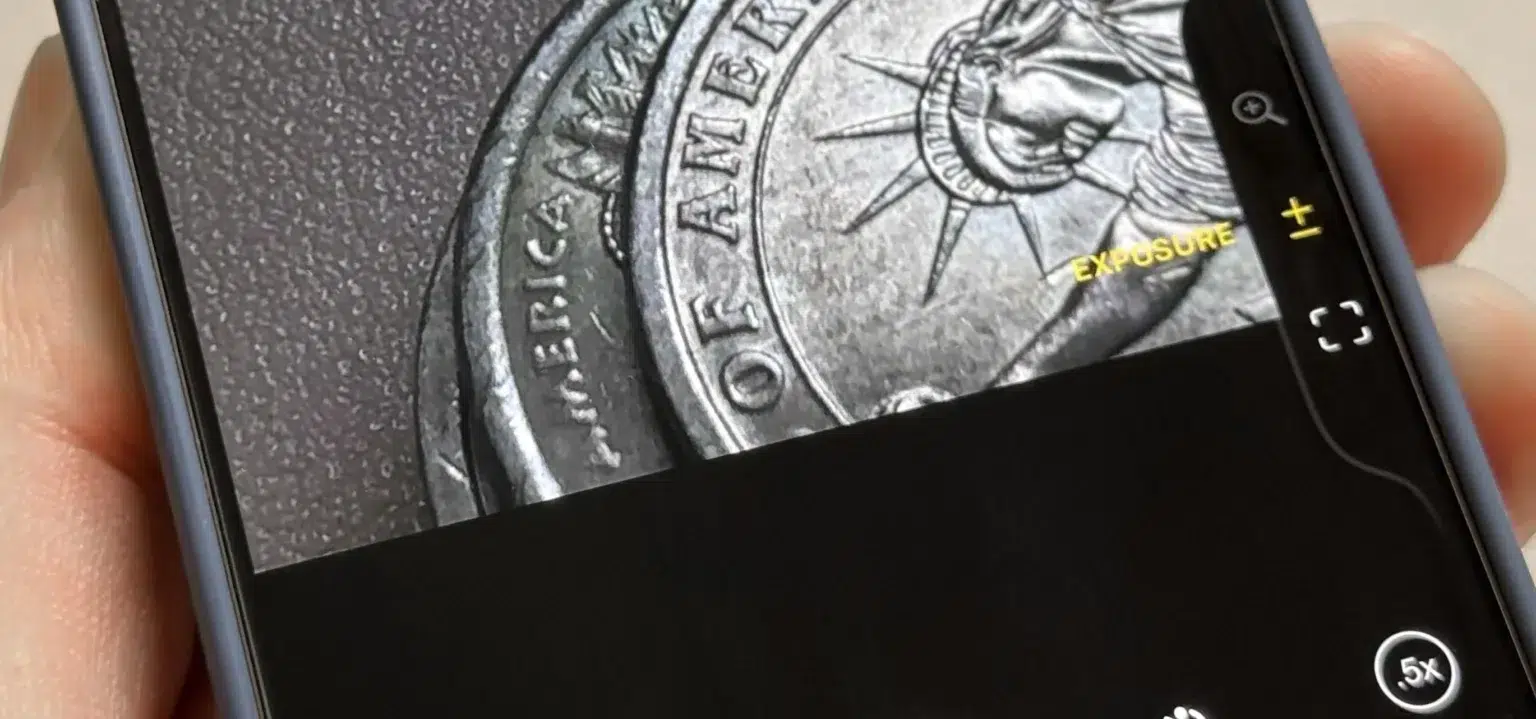
The Camera Control button on the iPhone 17 can do more than open the Camera app. You can set it to open Camera Code Scanner or the Magnifier. The setting lives in the Settings app, and it is simple to change.

Contents
  • Change Camera Control
  • Use Code Scanner
iPhone 17
Image Source: AppleInsider

Change Camera Control

  • Open the Settings app on your iPhone.
  • Scroll to Camera and tap Camera.
  • Tap Camera Control.
  • Choose Camera Code Scanner, Magnifier, or None.

Tapping the camera button will launch the camera app normally. In case you press the Code Scanner button, you can access a fast scanner, which reads QR codes and displays corresponding web addresses. Should you select Magnifier the button you are taken to a plain tool that assists you in magnifying small text or objects. These are steps that are outlined on Apple support pages.

In case you want the Camera Control button to appear as a physical dial, then you can leave it on Camera and swipe or press the light when the Camera app is open. That allows you to adjust zoom or exposure without using the touchscreen. The button can also be supported by third-party camera apps in order to allow more advanced apps to lock focus or adjust capture behavior.

Use Code Scanner

The Code Scanner on iPhone is fast and direct. It will open a link when it finds a QR code or show the code text if no link is present. You can also type code into the iPhone search field to launch the scanner at any time. This makes the Code Scanner useful for people who scan many codes for work or projects. Apple documents how the scanner works and how the Camera app detects QR codes automatically.

The Camera Control can be disabled in Accessibility settings in case you consider it to be too sensitive. That will prevent the button from doing any action until you turn the button on again. In case you have third-party camera software, visit its support pages to find out how it utilizes the Camera Control button and what additional features it has.

iPhone 17
Image Source: AppleInsider

Test both Code Scanner and Magnifier in a day before you change anything. Try every one of the options to determine their compatibility with your workflow and how the phone will perform with the lock screen or Quick Note features. When using the phone, the Code Scanner can accelerate ticket inspections and access to events, and the Magnifier is useful in reading tiny fonts and labels.

Each of these alternatives is reversible and non-hazardous. In case you have a second thought, go to Settings, Camera, Camera Control, and choose another. The Camera Control provides you with the ability to control the iPhone 17 quickly to do what you need at the time.

TAGGED:AppleiPhone
Share This Article
Facebook Reddit Copy Link Print
Share
Salman Akhtar
By Salman Akhtar
View enlightening tech pieces written by Salman Keep up with the most recent news, advice, and trends in the field of technology.

Let's Connect

FacebookLike
XFollow
PinterestPin
InstagramFollow
Google NewsFollow
FlipboardFollow

Popular Posts

Starzspins Deutschland: Eine umfassende Übersicht über neue Spiele und ihre Features

The Tech Basic

Cazeus Casino Chile: guía completa para comenzar a jugar en 2026

The Tech Basic

Glorion Casino België: ontdek de spannende wereld van live casino spellen

The Tech Basic

Discover the advantages of using the FunPari O’zbekiston mobile app for instant access to

The Tech Basic

You Might Also Like

iOS 26
How To

How iOS 26 Prioritizes Alerts With Apple Intelligence

Mobile Game Installs
News

Mobile Game Installs Drop but Spending Climbs in 2025

Galaxy S26
News

Samsung Reinvents AI on Galaxy S26 With Triple Assistants

Apple
News

Apple Hits New Sales Peak in Europe While Demand Softens Elsewhere

Social Networks

Facebook-f Twitter Instagram Pinterest Rss

Company

  • About Us
  • Our Team
  • Contact Us

Policies

  • Disclaimer
  • Privacy Policy
  • Cookies Policy
Latest
Microsoft Launches Copilot Tasks Research Preview
Lenovo Teases Foldable Legion Go With 11.6 Inch Screen
Instagram Will Tell Parents When a Teen Searches for Suicide or Self Harm
Nvidia posts $68.1B quarter as AI boom accelerates Q4 growth
Gemini Automation Books Rides on Galaxy S26 and Pixel 10

© 2024 The Tech Basic INC. 700 – 2 Park Avenue New York, NY.

TTB White LOGO TB
Follow US
Welcome Back!

Sign in to your account

Username or Email Address
Password

Lost your password?

Not a member? Sign Up





