
Google has added a new Open button to video previews in Drive that opens the file in Vids for editing. The button appears in the top right when a user previews a video in Drive. Vids imports the file automatically so the user can trim the clip, add music, add text, and make other edits without a manual import step. This change is on by default for Workspace customers, and it began rolling out on or around August 21, 2025.
What changed for users
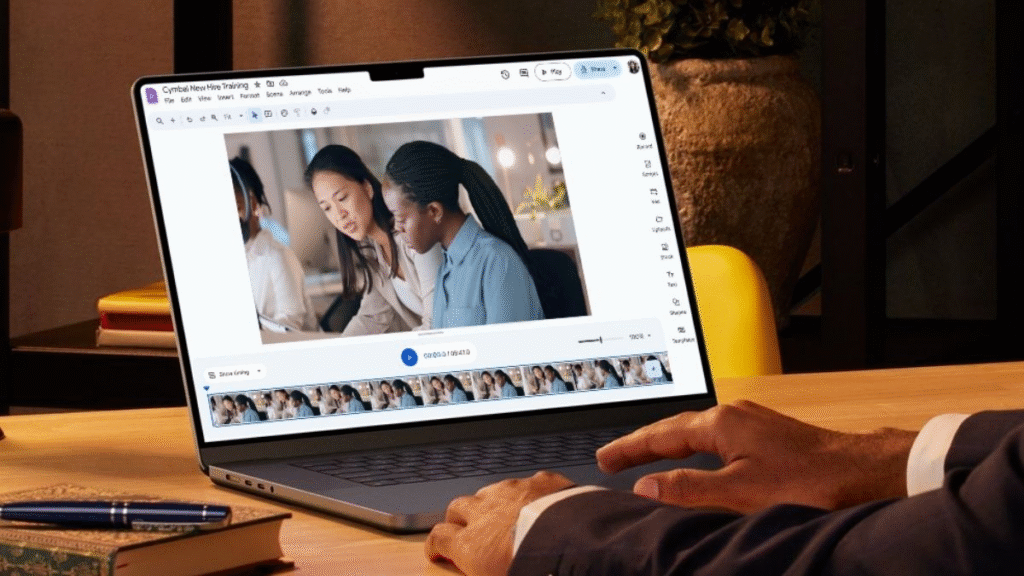
The Drive preview now shows an Open control that launches the Vids editor. Users no longer need to download a video and then upload it into the editor. Vids will open the exact file that the user is previewing. From there, the user can trim a clip, add text overlays, choose music, and arrange scenes. The goal is to make short edits fast and to reduce friction for teams that keep recordings and clips in Drive.
How to use the new shortcut
Open a video in Drive by double-clicking it. Look at the top right area of the preview to find the Open button. Click Open, and the file will open inside the Vids editor in the browser. Make edits and save the result back to Drive. Workspace admins can turn the shortcut off if they prefer. The rollout may take up to two weeks to reach all domains.
What Vids can do now
Vids is an AI-powered video app inside Google Workspace. It can generate short clips from text prompts, create scripts, add voiceovers, and produce simple scenes. Vids offers tools to trim clips, add titles, and add music. Google has added features that use Gemini to help summarize and analyze video content inside Drive. Gemini can produce short summaries and list action items so that users can find the key points before they edit.
Who will benefit
Teams that record meetings and training will find this faster. Content creators who store source clips in Drive will save time. Teachers and small teams with less video editing experience will gain access to simple tools that speed routine edits. The change lowers the barrier to polishing short clips for internal sharing or for quick social posts.
Where this fits in Google Workspace
The shortcut is part of Google work to make AI editing tools feel native to productivity flows. Earlier in the year, Google extended Gemini summaries to video files in Drive so users can get a quick read on long recordings. Now the same files can move straight into Vids for editing. The two updates together aim to reduce the time from discovery to finished clip.
Performance and limits to know
Vids supports clips up to a practical length for work projects. The product pages note limits for generated scenes and guidance for inserting longer footage when needed. Large source files will behave as Drive normally handles them, and performance will depend on connection and browser resources. Some advanced edits will still require a dedicated desktop editor.
Privacy and content safety
Edits saved in Vids remain in the user Drive storage and follow Workspace access controls. The AI features that assist with scripts and generation follow Google policies for content and copyright. Users should review generated audio and imagery for any rights concerns before publishing outside their organization. The rise of realistic AI video generation has raised wider questions about verification and consent, and those issues are part of the ongoing conversation around tools such as Veo three and Gemini.

Practical tips for teams
Keep your Drive organized so edits are easy to find. Label recordings with dates and short descriptions so Gemini summaries surface the right files. Test Vids on a short clip to learn how trimming text overlays and music works. IT admins who have strict storage rules should check whether the shortcut is enabled for their domain and make a plan for staff training.