

Receiving an iCloud junk mail alert each time a spam message comes through can be frustrating over time. The silver lining is that you can prevent those alerts with iOS, allowing you to keep the message within the Mail application without presenting them on your Lock Screen. The transition may help make your day less noisy and less distracting. We state the specific settings option that you need to look into to prevent Junk mailbox warnings.
What Push and Fetch mean for iCloud mail
Push means your mail server sends new messages to your device as they arrive. This gives instant alerts. Fetch means your phone checks the server on a schedule. Fetch can save battery, but may delay the arrival of new mail. Apple only supports Push for iCloud Mail on iPhone. Most third-party accounts use Fetch instead. That difference is why iCloud Junk can trigger immediate notifications while other accounts do not. Apple explains how Push and Fetch work and how they interact with iCloud Mail settings.
Where iOS keeps the control you need
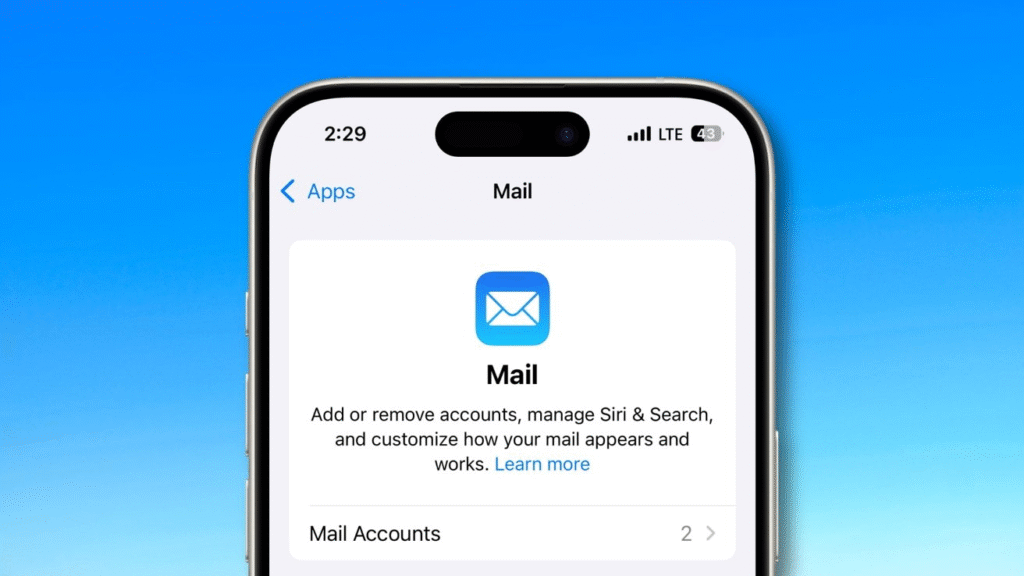
The control you want is not under Notifications. It lives under Mail settings. Open Settings, then scroll to Mail. Tap Mail Accounts, then Fetch New Data. In that section, you will see iCloud and a Pushed Mailboxes area. Tap iCloud and then find the Junk mailbox. You can change its schedule or turn push off for that folder alone. This will stop Lock Screen alerts for junk mail while keeping the messages in the Mail app. AppleInsider gives the step-by-step path to reach this setting.
Step by step to turn off Junk mailbox alerts
Open Settings on the iPhone. Scroll and tap Mail. Tap Mail Accounts. Tap Fetch New Data. Tap iCloud in the list. Look for Pushed Mailboxes. Find Junk and change its settings so it is not pushed. After you make this change, junk messages will still go to the Junk folder. They will no longer send notifications to the Lock Screen. This keeps your focus and reduces needless interruptions. The same path is described in multiple user guides.
If mail push is unreliable or missing
Some users have reported push problems after recent iOS updates. If Push seems to fail or appears unreliable, you can toggle the setting off and on or restart the device to refresh the connection. If the issue persists, check Apple support guidance for iCloud Mail troubleshooting. Apple lists steps to turn iCloud Mail off on the device and then back on as a way to fix stubborn syncing issues. MacRumors and Apple community threads show users reporting delivery or push issues after certain iOS updates.
Extra steps to cut junk at the source
Stopping notifications helps you focus. Reducing junk reduces the load on iCloud Mail. Use iCloud email aliases or Hide My Email to limit spam to disposable addresses. Mark spam as junk on iCloud web mail so Apple can learn patterns and filter more effectively. Apple support explains how to mark messages and manage the Junk folder on iCloud.com. These steps help cut the volume of junk you receive over time.
What to watch for and small tips
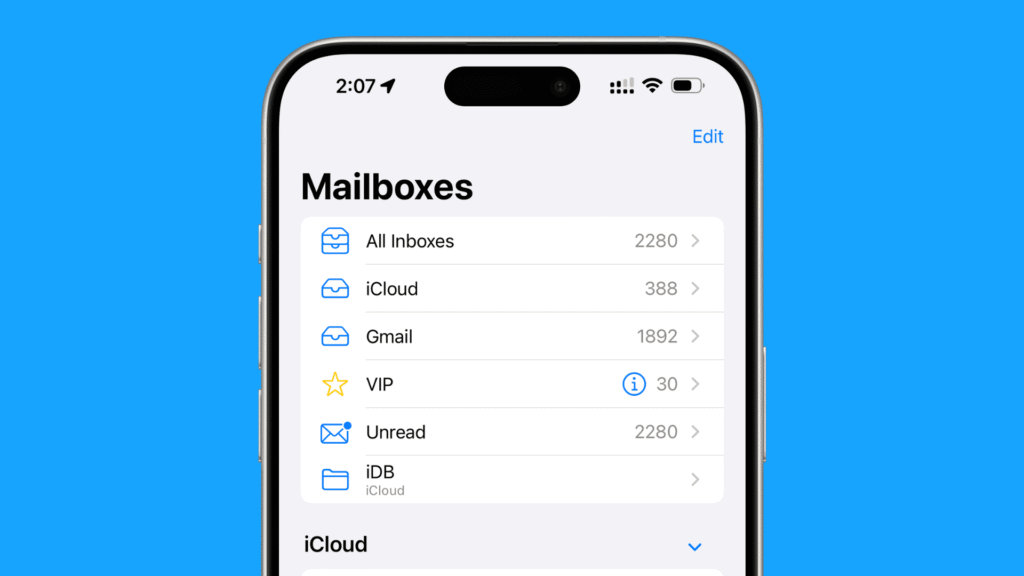
Turn off Push to the Junk folder, and those messages may quietly arrive. They will stay available in Mail. Occasionally, check the Junk folder; there may be a legitimate message there that was picked up in error. If you’re relying on 3rd party mail providers, then you might need to log in to their web portals so you can modify your spam controls at the source. People have found toggle Push and restart one-off issues.
Just now, take a quick moment to go change Pushed Mailboxes for Junk Settings. This change is fast and can make ur phone seriously quiet. Junk messages will still be kept right where they belong, and you can have peace on your Lock Screen.







