

It is vital to learn how to control the storage of messages in iCloud in order to ensure that Apple devices are used successfully and personal data is safe. Sending messages to the iCloud trash removes them from everywhere connected to the same Apple ID. This will declutter and allow you to not be caught short with unexpected storage limits. This guide gives clear instructions for iPhone and Mac.
Delete messages from iCloud on your iPhone
Launch Messages on your Mac. On the menu bar, you can click on Messages and then Preferences. Another option would be to disable or enable Messages in iCloud, which you will find in the General tab. Switch off to turn iPhone Messages in iCloud capability off. A prompt will show up. Select Remove from iPhone, which then removes all the messages on the phone stored in iCloud.
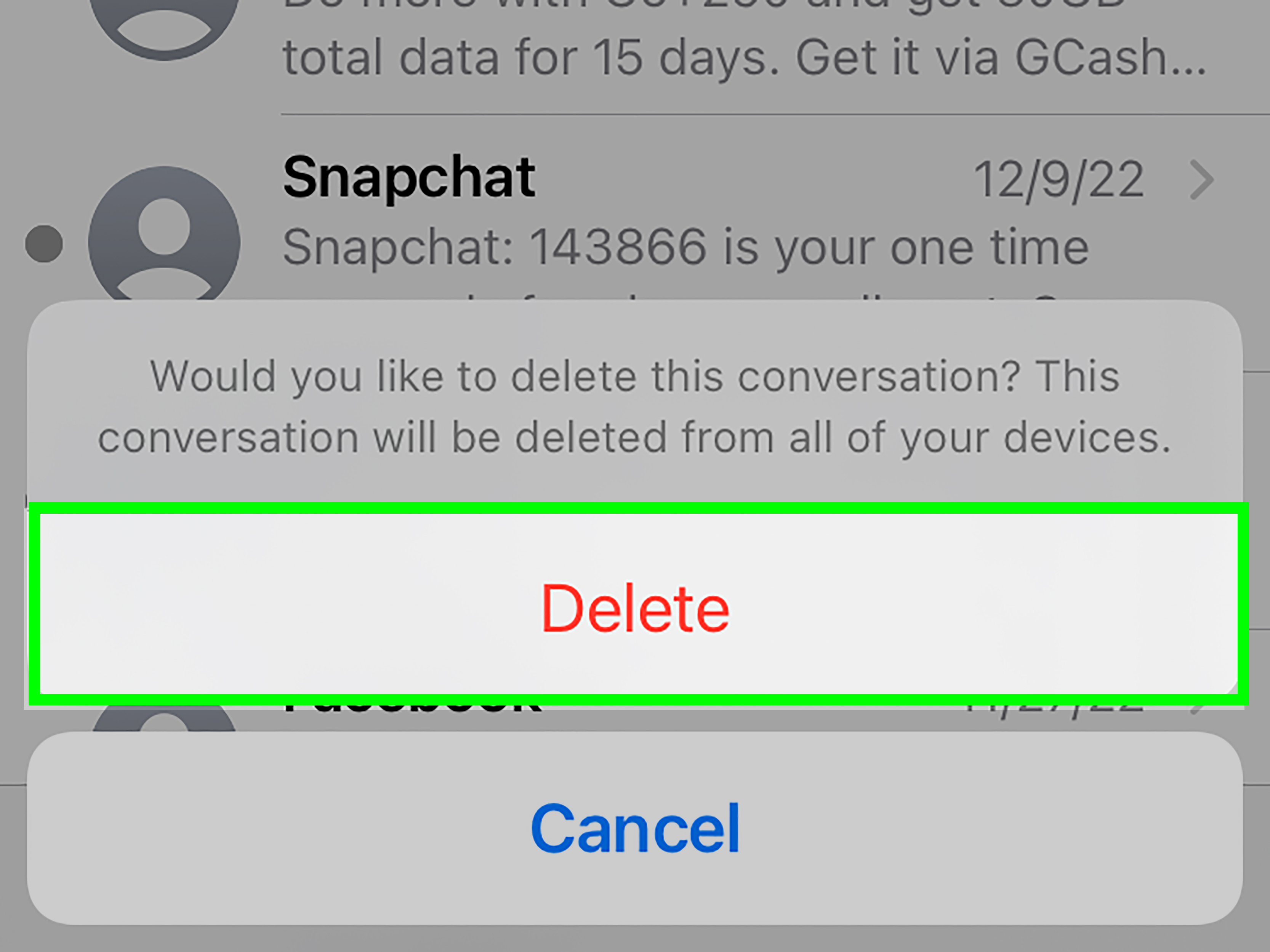
To delete single conversations, open the Messages app. You will locate the conversation that you want to clear. You then swipe left on this conversation. Select Delete and press ok. With this, the thread is deleted in iCloud and across all devices.
To delete attachments that occupy space, failing to delete entire conversations, tap Settings, then General and iPhone Storage. Messages Tap – see photos, videos, and GIFs. Swipe left on whatever large item and choose Delete to eliminate it on iCloud and on your device.
Delete messages from iCloud on your Mac
On the Mac, start Messages. Select Messages, then Preferences on the menu bar. On the go to General tab, you will find the option to switch off or switch on the Messages on iCloud. Uncheck the box to stop syncing. A prompt will ask if you want to disable. Confirm to remove all iCloud messages from your Mac.
To remove one conversation, right-click the chat in a sidebar. Select Delete Conversation and ok. This erases the discussion on all connected devices.
To control attachments, click Details in a chat that is open. Click on any picture or file and hover the mouse over it, and press Delete. This copies the item from iCloud storage and off your Mac.
Keep message storage in check
Deletions delete messages, and after that, it is prudent to check your iCloud storage page. In iPhone, go to settings, tap your name, then iCloud, and Manage storage. In Mac, open System settings and tap Apple ID, then iCloud. You will get a breakdown of storage use.
Consider setting messages to auto-delete after a period. On iPhone, go to Settings, Messages, and scroll to Message History. Select Keep Messages for thirty days or one year. Despite the differences in Mac, you have to do the same using Messages Preferences. Such settings help to deter the accumulation of old tasks.
There is the option of performing a regular cleanup of the messages and the attachments since this would help in enhancing the performance of a device, as well as prolong the life of a storage that is limited. Taking these procedures, you will ensure that your iCloud remains trim and save your secret negotiations.







