

Notifications can take over your day. Numerous users are distracted by the abundance of pings and banners. According to a study, the average individual receives approximately 146 notifications in a day and younger individuals receive more. These figures demonstrate why it is worth spending a few minutes to turn your iPhone on.
Short changes make a big difference. This guide shows simple steps to group alerts set quiet times and control urgent messages. The steps use built in iPhone tools on iOS 26. They work on most iPhone models that run the same software.
Set Scheduled Summary
Scheduled Summary groups notifications so they arrive at times you choose. This works well when apps send many small notices. To set it open Settings on your iPhone. Tap Notifications. Tap Scheduled Summary. Turn Scheduled Summary on. Tap Continue. Choose times for summaries to appear during the day. Pick the apps that you want to include in the summary. Press back to finish. The summary is ordered by priority and shows the most relevant items first.
You can have more than one summary time. Try two or three blocks per day. Many people like a morning midday and evening summary. That pattern reduces steady interruptions and keeps the important alerts visible. It has been found that batching notifications can enhance focus and mood in most individuals.
Control App Notifications
Some apps send many notices you do not need. Email social apps and some games can flood your lock screen. To prevent notifications of one specific app, select Settings followed by an options of Notifications. Swipe to the name of the app and press it. Go to the option of Allow Notifications to disable this app and prevent it as a source of alerts. Switching the appearance of an app with respect to alerts may also be done by switching off the sounds banners or badges in the same screen.
You can also use Focus modes to limit alerts when you work sleep or want quiet time. Open Settings then tap Focus to create a mode. Choose which people and apps can notify you during that mode. Turn on Smart Activation to let your iPhone switch modes automatically based on time or location. Focus works across Apple devices that use the same Apple ID.
Manage Government Alerts
Government alerts appear at the bottom of the Notifications screen. This is where you control AMBER alerts emergency alerts and public safety alerts. Tap the Open Settings and go to Notifications and scroll to the bottom. Switch off the alerts that you do not want. Most phones leave severe or extreme alerts on by default. These alerts can warn you of life and safety threats.
Emergency systems vary by country. Some regions also offer earthquake alerts and other enhanced notices. Your carrier may also manage test alerts. Check local guidance so you know which alerts are important for your area.
Apple Intelligence Summaries
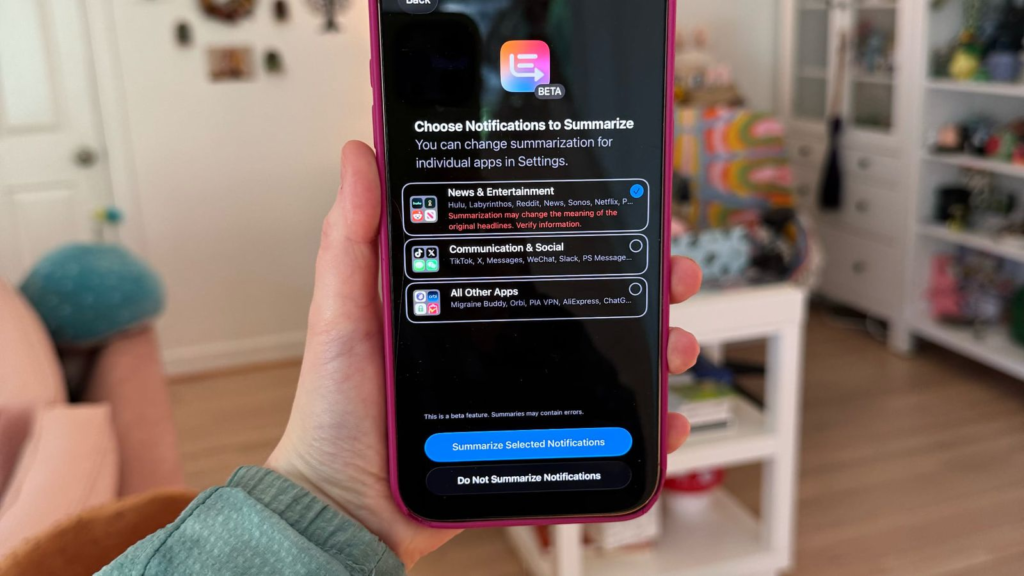
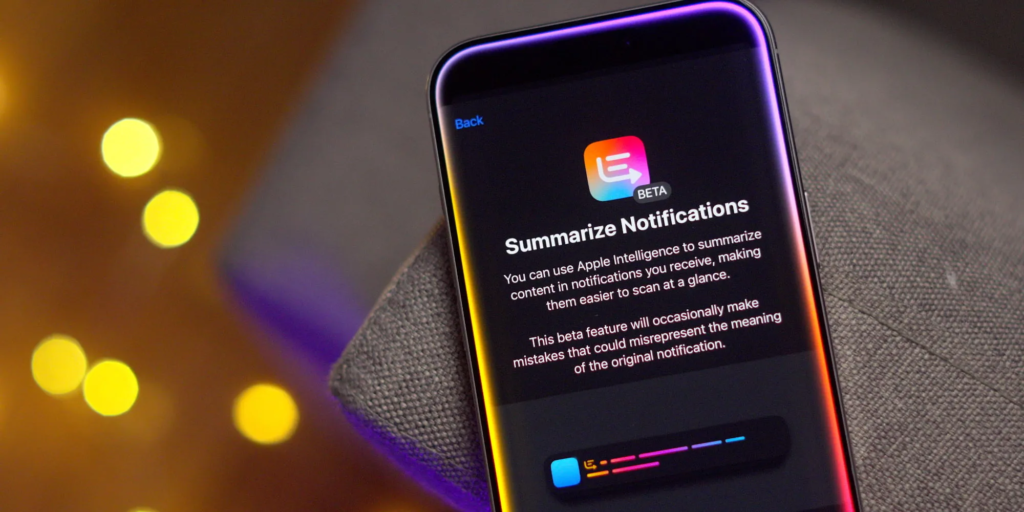
iOS 26 brings back optional Apple Intelligence summaries for some notifications. These summaries use on device AI to shorten or group news and other long alerts. You can choose whether a category uses summaries and you can always tap a summary to see the original notifications. The feature now shows a label that notes Apple Intelligence created the summary. This gives you more control and more transparency about what the AI changes.
Use this feature for a small number of apps at first. Watch how the summaries read. Report any mistakes so the system can improve. The additional control is useful since you are not left out of facts and yet the clutter is reduced.
Practical Tips That Work
Begin with Scheduled Summary two or three blocks a day. Switch off the notifications of the two or three apps that distract you the most. Use Focus for work sleep and family time and let the phone switch modes automatically. Keep severe emergency alerts on unless local guidance says otherwise. Try Apple Intelligence summaries for news categories but keep originals easy to reach. Adhere to these steps and you will have lesser interruptions and more peaceful moments.
Troubleshooting and Small Fixes
If notifications seem missing check Focus settings. Open Settings then tap Focus to see which modes are active. If a summary does not appear check Scheduled Summary times and app selection under Notifications. For those who use multiple Apple devices make sure they use the same Apple ID and that notification rules match across devices. When in doubt restart the iPhone after changing settings to ensure changes take effect.







