
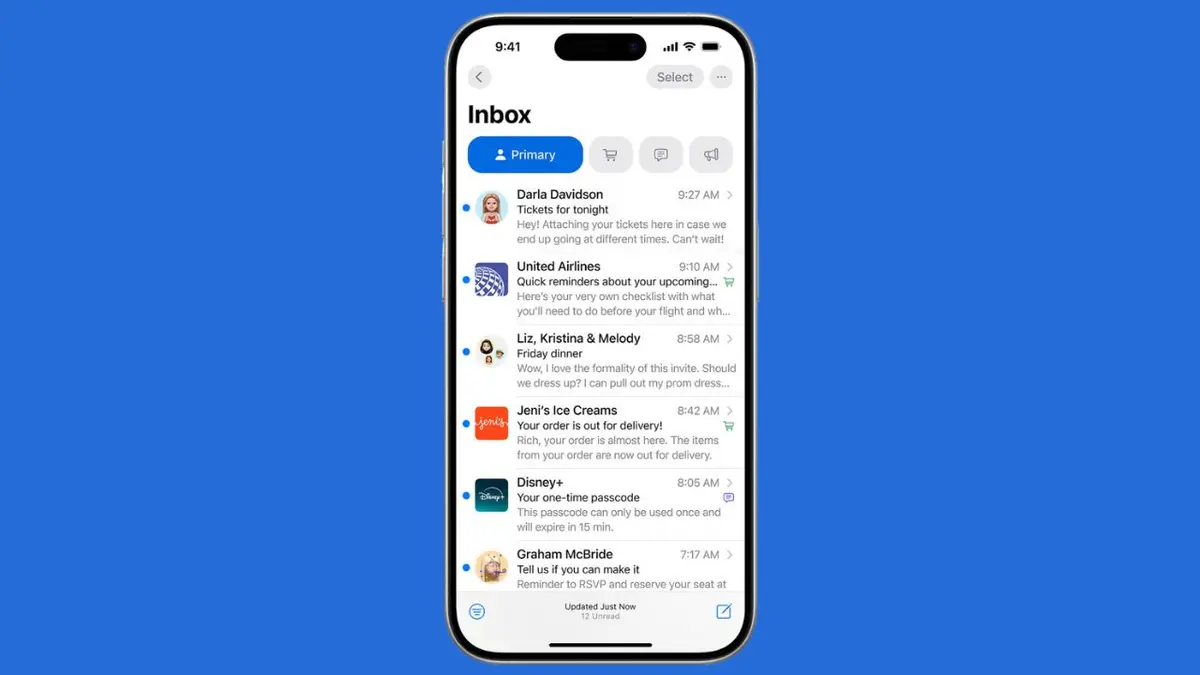

Apple added automatic categories to Mail in iOS 18.2. The update classifies received messages under Primary, Transactions, Updates and Promotions. The feature is compatible with iPhones that are iOS 18.2 and above and accounts who use the Mail application. The design will assist individuals to view significant messages initially and sort mass mail to be reviewed later.
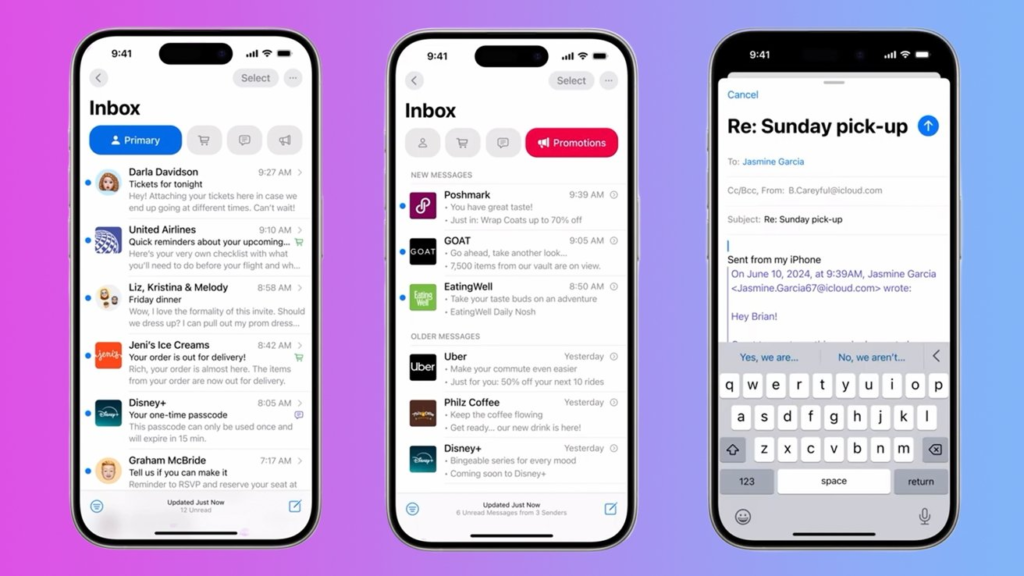
How Categories Work
The Primary category shows mail from people in your contacts, messages from other users, and time sensitive items that Apple Intelligence marks as urgent. Messages in Transactions, Updates, and Promotions show as grouped digests for each sender. Tap a digest to see recent messages from that sender stacked together. Primary messages are not grouped in the same way. The grouping can speed up reading and reduce clutter once the system learns your choices.
You can change how Mail treats a sender. Open a message and use the More Actions menu to choose a category. Once you reassign a sender all future mail from that sender will arrive in the chosen category. You can also open a digest for a sender in Transactions, Updates, or Promotions and use the More menu at the top to select Show All Messages or to recategorize the sender. These controls let you train the app in a few quick taps.
On supported iPhone models Mail can surface a short summary for time sensitive messages. That summary sits above the message snippet and can help decide whether a message needs immediate attention. The ability to show priority items depends on Apple Intelligence and on the device model. The summary and priority features can be turned off separately in settings for people who want a simpler view.
Turn Off Categories
Some users prefer the classic list view. Apple ensured that switching was easy. Open the Mail app and press three dots menu on the top right corner of an inbox. Choose List View to return to the traditional inbox layout. You can also swipe across the category buttons to open All Mail when you need a full view without permanently changing the display.
If your device supports Apple Intelligence you can control priority summaries from the List View menu. Uncheck Show Priority to prevent urgent items from rising to the top. To disable Apple Intelligence more broadly open Settings and go to Apple Intelligence and Siri. Use the main toggle to turn the feature off. Note that older iPhone models do not show Apple Intelligence controls.
Tips to Train Mail
Train the categories by recategorizing a few frequent senders. Use the half swipe to the left on a message to open the More Actions menu and choose Categorize Sender. When you move bulk mail into Promotions or Updates Mail will remember that choice. For messages that should never be grouped use List View or move the sender to Primary so messages arrive in the top tab. A short training session of a few minutes can yield accurate sorting in the weeks that follow.
Badge counts and notifications may change with categories. By default the unread badge shows Primary unread messages on many devices. To enable all unread messages to be displayed go to Settings then Notifications then Mail and select Customize Notifications per account. To revert these counts to the ones you would rather have, change these settings.
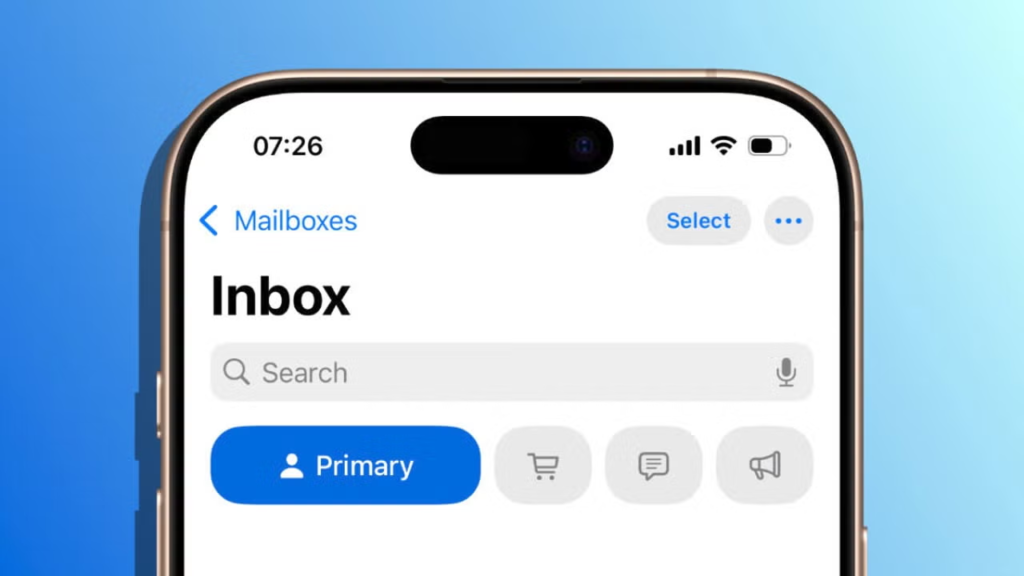
Troubleshooting Notes
In case the categories appear incorrect or no digests occur, make sure that the Mail application is updated and the account sync is on. Others that could use the iPad and Mac communicated that the feature was implemented on iPhones first before other gadgets. The feature uses server side updates in other cases and thus updating to the latest iOS version comes in handy. To fix long term issues visit the Apple Support pages on Mail that clarify how to see all the messages of a particular sender, as well as how to modify the settings of categories.







