
Battlefield 6 can look great and still run poorly on many PCs. Low frames, stutter, and lag break the game. This guide gives clear steps you can use right now to get smoother play. Read through the quick fixes first and then use the advanced steps when needed. Several recent DICE updates aim to fix core issues, so keep the game patched.
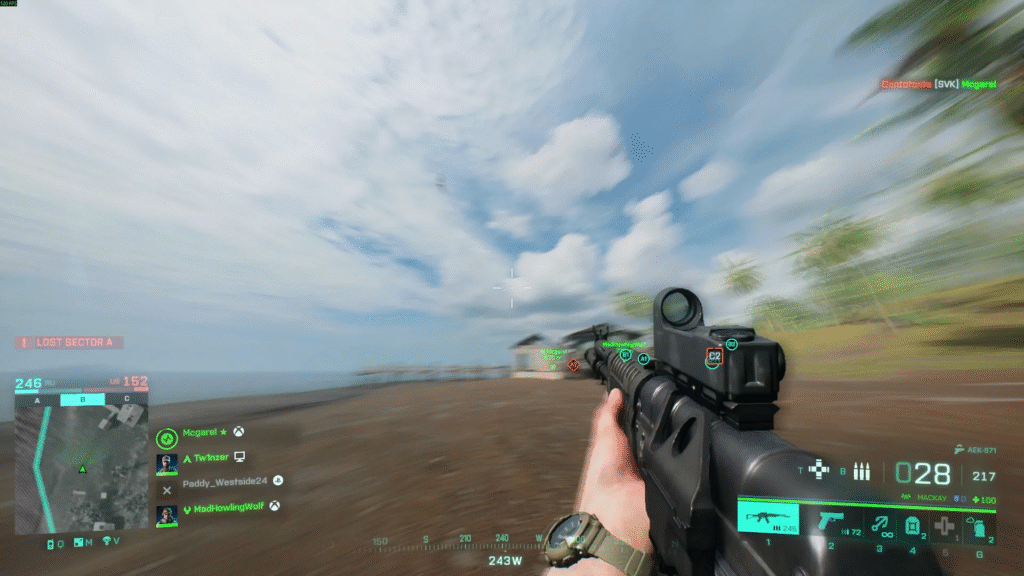
Quick Fix Steps
These tips take a few minutes each. Test them sequentially and test your frame rate between tests.
- Keep GPU drivers updated with the latest official release of NVIDIA, AMD, or Intel. New drivers fix game issues and add optimizations.
- Lower the most demanding settings in the game. Set textures to medium and turn ray tracing off. Use an upscaler like DLSS or FSR on balanced or performance mode.
- Use a wired Ethernet connection for multiplayer. A wired link reduces packet loss and the chance that network lag looks like frame stutter.
- Close overlays and background apps. Quit Discord overlays, recording apps, web browsers with many tabs, and cloud sync tools. These eat CPU and GPU resources.
- Set Windows power mode to best performance. This will not lead to downclocking of the CPU during battle.
Advanced Troubleshooting
Do them not in case the quick steps do not clear the matter.
- Clear the shader and DirectX caches. Corrupt shader caches cause spikes and stutter. On Windows, use Storage settings and remove the DirectX shader cache. Then, delete the game cache in the Documents folder.
- Verify game files on your launcher. A file mismatch can produce strange performance drops. Use the repair or verify option in the Steam or EA app.
- Check GPU VRAM use. Running out of VRAM forces the game to stream textures, which stutters frames. Lower texture quality or resolution when VRAM is near full.
- Tune in the GPU control panel. For NVIDIA, set power management to prefer maximum performance. For AMD, enable performance mode for the game profile. These settings stop the sudden clock downscale.
- Reduce the mouse polling rate if you see micro stutters in aim. Many players find that lowering the report rate helps mouse smoothness.
- Monitor CPU and GPU temps. Thermal throttling cuts clocks and causes frame dips. Clean dust, improve airflow, and check fan curves.
What to change first in the game
- Resolution down one step from native will help more than minor setting drops.
- Set texture quality to medium and shadow quality to low for big VRAM and CPU relief.
- Enable DLSS FSR or XeSS on balanced or performance to gain frames with little visual loss.
Why Some Stutter Remains
DICE is working on multiple issues that can cause stutter and hit registration oddities. Recent patches have fixed many bugs, but other systems are still under investigation. The studio continues to tune dispersion and netcode and to patch visual problems that can feel like lag. Keep the game updated and follow official patch notes.
Quick Checklist to Run Now
- Update the GPU driver and restart the PC.
- Set the game to balanced or performance upscaler.
- Close overlays and heavy background apps.
- Run the game and watch a consistent section to measure improvement.
When to Test Hardware
- Run a short benchmark or a stress test to confirm stable clocks.
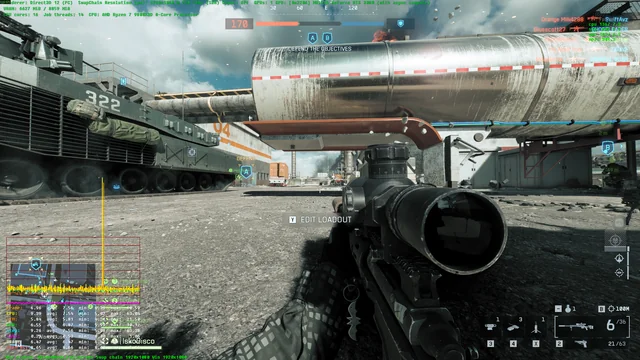
- Use tools like MSI Afterburner to log FPS and GPU use while you play. This shows whether stutter aligns with CPU spikes or VRAM limits.
Final Notes
The systems of Battlefield 6 are complicated, and numerous players complain of mixed issues. The above steps should be followed sequentially, and the advanced checks should only be employed when simple corrections are not applicable. DICE has issued some patches to fix significant bugs, and there is a high possibility that they will add additional performance fixes in further updates. Keep drivers current and do a quick checklist before every playing session.