

Apple Mail allows you to store all your email accounts within it. This simplifies and quickens the process of reading mail. This article describes the process of adding an account on an iPhone and on a Mac. It also deals with the general issues and easy solutions. The procedures are understandable and presented in simple terms.
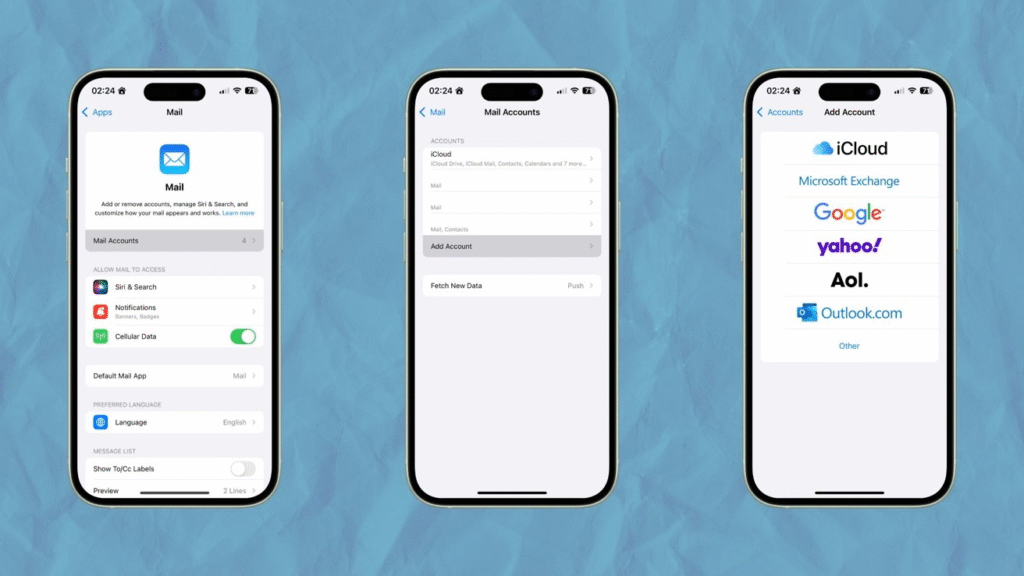
Add on iPhone
Open the Settings application on your iPhone. Scroll and tap Mail. Tap Accounts. Tap Add Account. Pick your email provider from the list. If the provider is not shown, tap Other and then tap Add Mail Account. Type your name. Type your email address and the account password. Tap Next and wait while the phone checks the account. If the device asks for server details, enter the values your email service gives you. Choose whether to sync Mail, Contacts, Calendars, and Notes. Tap Save. Launch the mail application and look in All Inboxes to view mail in all accounts.
Add on Mac
Open the Mail app on your Mac. Go to the menu bar and select Mail, followed by Add Account. Select your email provider. If you do not see your provider, choose Other Mail Account. Type your full name, email address, and the account password. Click Sign in and wait while the Mac verifies the account. If you must enter incoming or outgoing server information, type the details your provider lists. Choose whether to sync Mail, Contacts, Calendars, and Notes, and click Done. As an alternative, open System Settings, then Internet Accounts, then Add Account, and follow the same steps. Your Mail app will show the new account once setup is complete.
Troubleshooting and Tips
In the event that Mail is not able to check the email and password typed by typing. Attempt to switch Wi Fi off and on and re-attempt. In case messages fail to sync out of the account and into the device. In case the Mail app continues to request a reset password on the provider website and update the password in Mail. To Exchange or work accounts, request your IT team to give you special instructions and application passwords. Maintain iPhone and Mac software. To get faster at composing messages, create a default account in Mail settings. Reading emails in all the accounts at a single location can be done with the unified inbox.
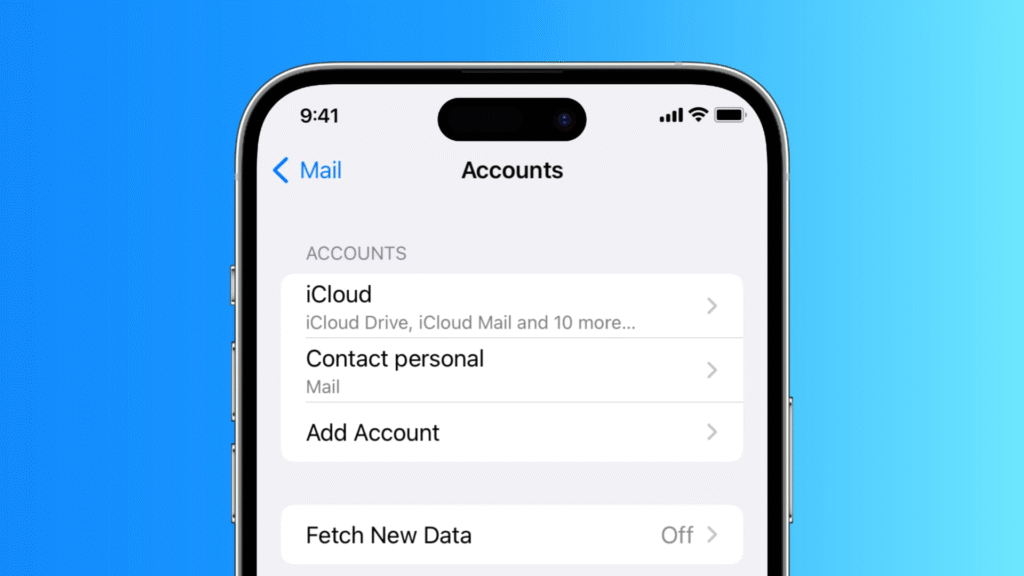
Installing email in Apple Mail takes but a short time when the above steps are taken. Once you are done with configuring your messages and folders, they will automatically be synchronized across devices if you want them to be. Should you get into trouble, the solutions in this article will fix most of the problems, and you will have your email going again.







