


Apple Wallet can hold more than credit and debit cards. It can also store rewards and membership cards. In iOS 26, there is a simple way to bring unsupported cards into Wallet. This article explains each step in plain language. It also offers tips to keep your cards organised and secure.
Add a Card
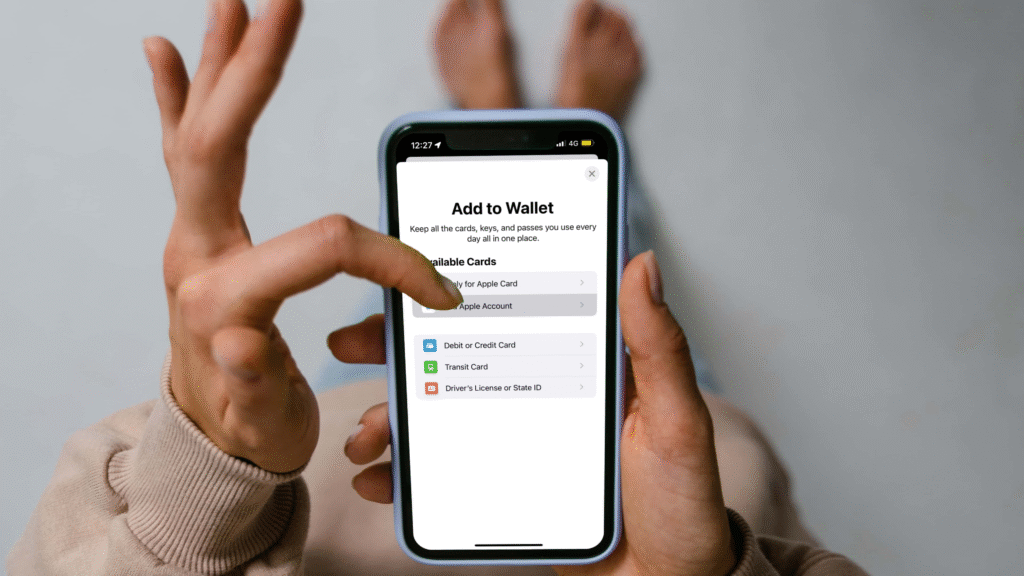
Open the App Store and install a pass manager app. Many users choose Pass2U or a similar app. Launch the pass manager and find the pass store inside the app. Search for the name of your loyalty program or store. Select a template that matches your card. Fill the form fields with your account details. Use the app camera to scan the barcode on your physical card. Save the pass. Then choose the option to add the pass to Apple Wallet. The card will appear in Wallet along with your other passes.

If the company offers an in-app button to add a card, you can use that instead. Some stores let you sign in and add the card without a third-party app. If that option does not appear, use the pass manager method described above.
Manage Cards Easily
After the card is in the Wallet, you can open the Wallet to view it. Swipe a card to get a view of the barcode and information. You may also drag cards to have the card that you use frequently closer to the front. In order to delete a card, open the card and choose the remove option. You can also create notifications to remind you of the presence of a card through Wallet.
Practical tips
Select the type of bar code prior to the creation of a pass. Some stores use QR codes, and some use other barcode formats. A good pass manager supports multiple barcode types. If the app cannot scan your barcode, try typing the number into the template. Keep a backup by taking a screenshot of the original card before you add it. That step can help if you need to recreate a pass later.
Security and privacy
Do not add sensitive identity documents to Wallet using third-party tools. Do not keep a Wallet instead of a formal photo ID. Use a passcode or face, or fingerprint unlock to lock your iPhone. Wherever possible, make sure that your account is highly securitized and 2-factor authentication where possible, especially where there is the use of iCloud. Removing a pass from Wallet deletes it from that device. If you use iCloud and Wallet sync, the pass may be removed from other devices, too.
Troubleshooting
If the pass will not add to Wallet, try restarting your iPhone. Make sure the pass manager app has permission to use the camera. Update the pass manager and iOS to the latest versions. If the barcode scan fails, try a different light level or a flat surface. If the problem still persists, try a different pass template or create a manual pass with the card number.
Why this helps
Rewards and membership cards are stored in Wallet, which is time-saving at checkout. You will not have to look in a pocket wallet or the lower part of a bag. There is also a history of recent passes in Apple Wallet, and it can surface the most relevant card when you need it.







