
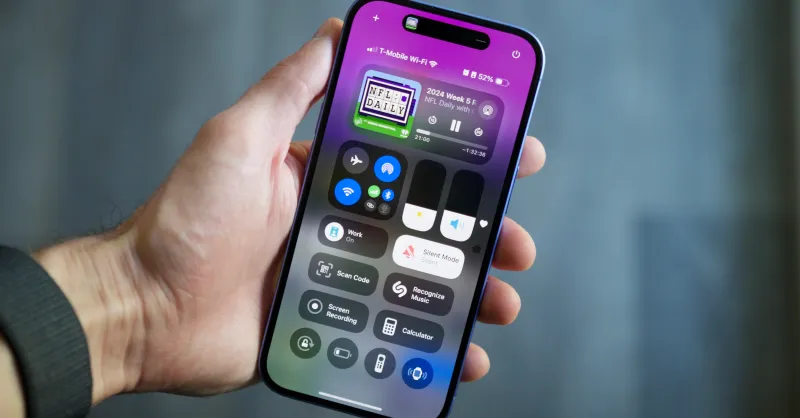

Control Center in iOS 18 looks new and it feels new. Apple redesigned this area so people can reach more controls faster. The new layout uses groups so related buttons stay together. Apple also added a controls gallery and allowed many apps to supply their own controls to the gallery. These changes let users add more tools and keep the interface tidy.
How to open Control Center
In cases your iPhone uses Face ID, swipe down in the upper-right corner of the screen to view Control Center. With an iPhone that has a Home button, swipe up the bottom edge to open up panel. You can open Control Center on the Home Screen and when you have apps open in case the access in apps setting is enabled.
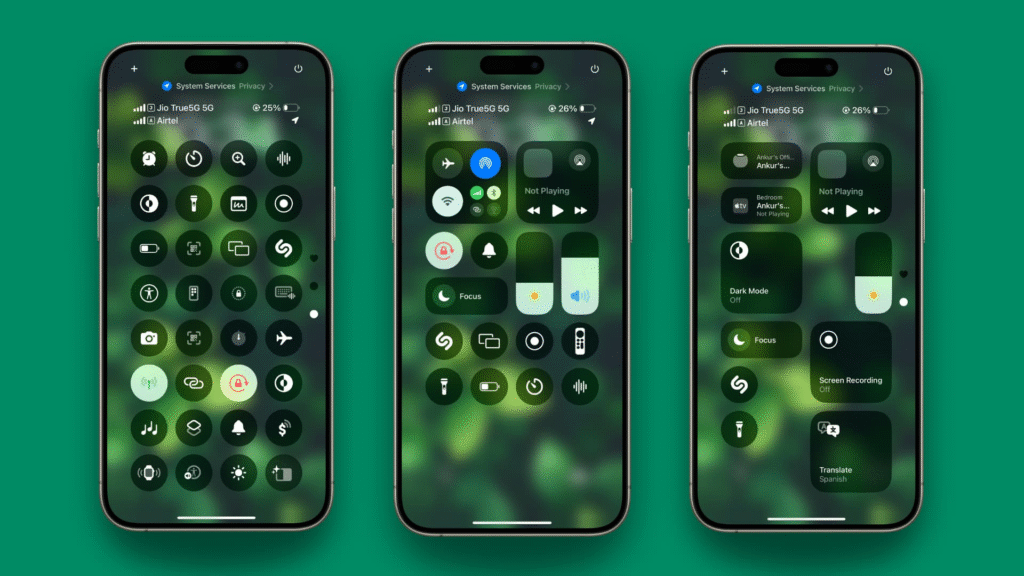
What the new layout looks like
Control Center now shows multiple pages of controls. The first page is for favorite controls. The second page shows media playback and connected audio. The third page groups connectivity settings like Wi Fi, Bluetooth, and cellular toggles. You can move between pages with a single continuous swipe. Apple designed the layout so users can reach functions with fewer taps.
How to enter edit mode and move controls
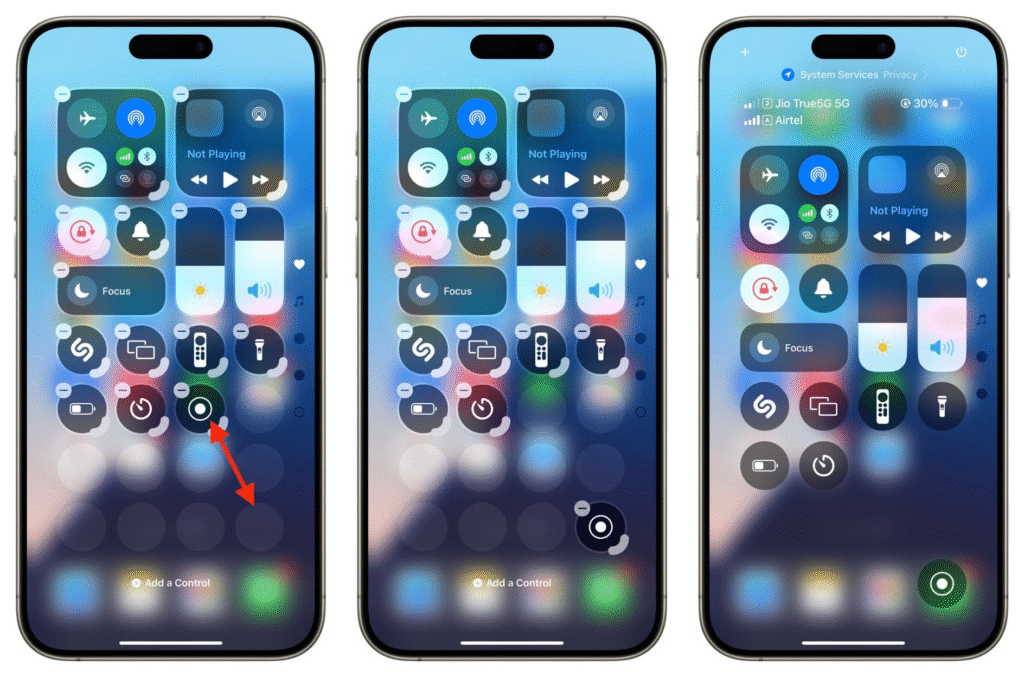
Open Control Center and tap the plus sign at the top left to enter edit mode. Once you are in edit mode, tap and hold a control and then drag it where you want. You can move controls across pages or into new groups. To make a control larger or smaller, drag the handle in the lower right of the control. If completed, just swipe up the bottom of the screen or tap the top of the screen to exit edit mode. Guides and hands-on tests show these gestures in action, and they match Apple instructions and user testing.
How to add controls from the gallery
Tap Add a Control in the gallery to open the full list of available controls. Browse the gallery to find built-in controls and third-party app controls that appear after apps add support. To add one, tap a control. You may add the new control to an existing group or to a new group. The gallery has all of the options in one location, allowing you to use new tools without fully leaving Control Center.
How to make and manage groups
Groups let you collect similar controls together so you find them fast. To add a group, tap the plus sign then tap the small circle on the right side below other groups and choose Add a Control. Place the controls you want in the group and then close edit mode. You can rename a group by editing and moving controls until the order fits how you use your phone. Groups keep heavy use controls separate from media and from connectivity switches.
Reset and new connectivity toggles
iOS 18.1 added a reset option for Control Center in Settings so you can return to the default layout if edits become messy. The update also added new toggles that let you add connectivity controls individually. Those additions make it easier to show or hide specific items, such as cellular data or a particular network control. Check Settings if you need to clear your layout and start fresh.
Tips for third-party controls and developers
Third-party controls only appear once an app offers support. If an app does not show a control in the gallery, first make sure the app is updated and that the app supports Control Center controls. Developers can create actions that users add to the gallery, so common app features become one tap away. If you rely on a specific app control, check the app documentation for any steps needed to enable its control.
Small practical rules and safety notes
Rearranging your controls means taking little steps at a time and, at each step, testing how well the layout works so that you end up remembering where the most-used buttons are. Watch the size and location of bigger controls, as they may move other objects out of sight. In case Control Center acts strangely, choose the Reset option in Settings and then restructure your layout. If you have more than one person using the iPhone with yo,u use a personal layout that reflects how you use the phone, and do not just use muscle memory to test out new arrangements.







