


Calibre is a free application that transforms a Mac into a personal e‑book cloud. It began as a powerful organizer and file converter. Over time, it has gained features that let anyone share their library across all of their devices using a built‑in web server. This guide will show how to set up Calibre to store books and stream them from a browser or mobile reader.
- Why choose Calibre for your e‑book library
- Prepare your Mac for Calibre
- Setting up your library folder
- Adding and converting your books
- Organizing and editing metadata
- Enabling the content server
- Accessing your library from other devices
- Making your library available anywhere
- Backing up your Calibre library
- Tips for advanced users
Why choose Calibre for your e‑book library
Most commercial e‑book platforms lock you into their own storefronts. You cannot always use files you already own or control how they are organized. Calibre frees you from these limits. You can store files locally, convert them to any format, and edit metadata to match your personal preferences. You gain an open solution that supports devices from Mac to smartphones without monthly fees.
Prepare your Mac for Calibre
Before installing Calibre, make sure your Mac has a reliable internet connection and ample storage space for your books. Both Intel and Apple silicon Macs run Calibre with equal ease. Obtain e‑book files in common formats such as EPUB, PDF, MOBI, or AZW3. You can find free public‑domain titles online or export purchases from your favorite store. Download the Calibre installer from the official site and open the application.
Setting up your library folder
The first time Calibre is launched, it will request the location of your library folder. The safest option is to reserve a special folder in the Mac or an external hard drive to back it up. This folder will hold all book cover images and data that Calibre provides. It is possible to relocate this folder in the future in case of the requirement to increase storage.
Adding and converting your books
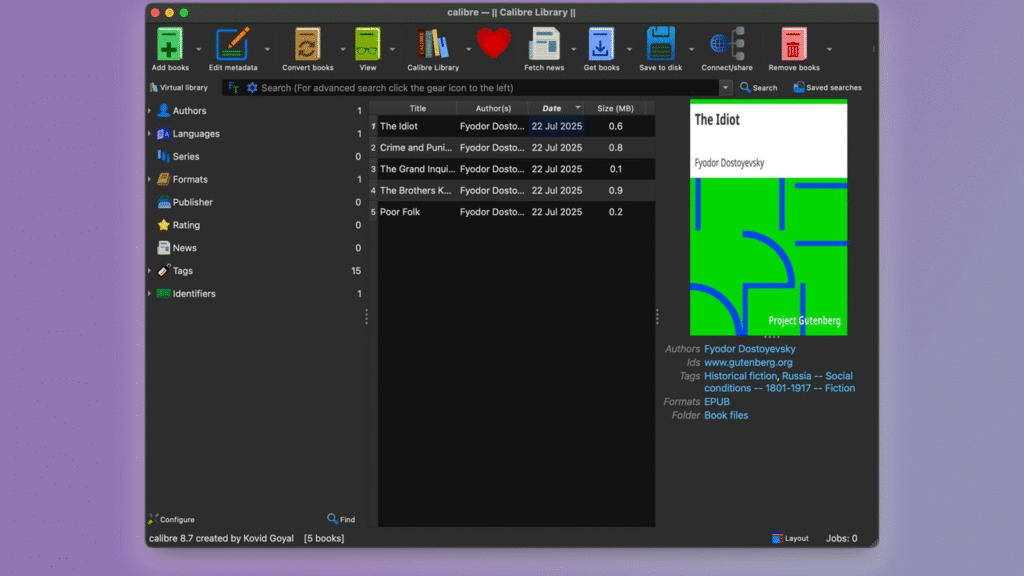
Adding books can be accomplished by either dragging files in Finder to the Calibre window or using the Add Books button. Calibre can accommodate tens of formats that you can add PDF, TXT, DOCX, etc. You can change books into EPUB to distribute them as optimally as possible. EPUB is compatible with almost all reader products. Click on a book and then convert Books and EPUB as a file format. Text will be saved in form and image, according to Calibre.
Organizing and editing metadata
Calibre can automatically fetch cover art and metadata such as title author and publication date. Select a book and click Edit Metadata, then Download Metadata. You can also type your own tags or series information to personalize your collection. Good metadata makes it easier to sort books by author genre or reading status.
Enabling the content server
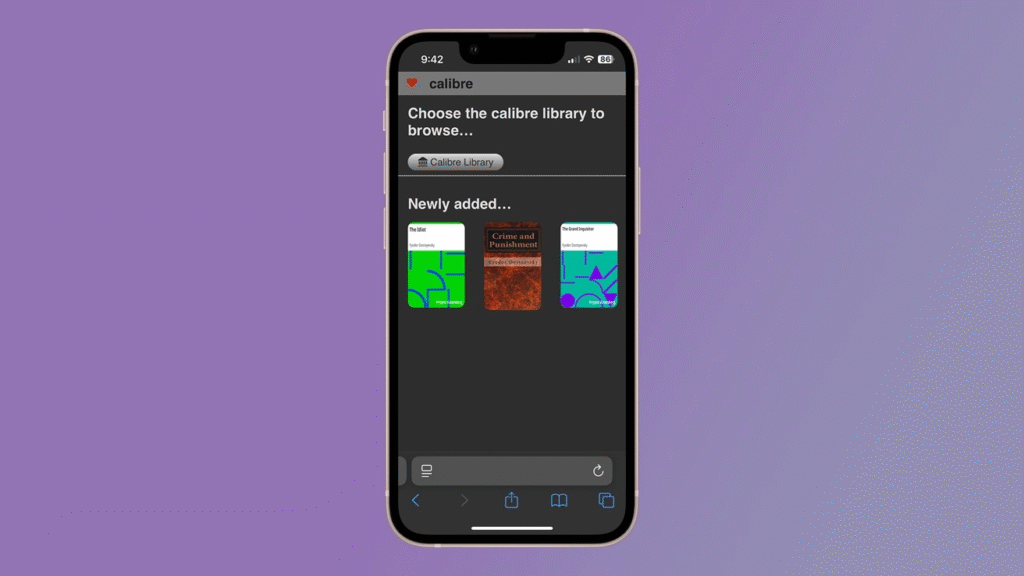
Calibre includes a feature called the content server that streams your library over HTTP. To turn it on, click the Connect share menu and then Start Content server. Calibre will display the address http://localhost:8080. Open that link in any browser on your local network to browse your books. You can download individual files or read them inside the browser.
Accessing your library from other devices
On a smartphone or tablet, open Safari, Chrome, or any browser and enter the same address used on your Mac. The Calibre interface will adapt to mobile screens and allow you to tap a book to read it or to send it to another app. You may choose to open EPUBs in Apple Books or a third‑party reader such as Marvin or KyBook.
Making your library available anywhere
The library is streamed only in the case when you are outside the range of your home network, and then you will need to direct the port 8080 facing your router toward your Mac. Locate the exterior IP address and log in to your router, and configure port forwarding. To be even more convenient, a dynamic DNS service can be used, which allows entering an easy name, rather than a numeric IP address. Always password-protect your MAC and restrict access to the server you wish to share the library with the rest of the internet.
Backing up your Calibre library
The Calibre folder carries all your books and all the settings you have made. Keep backing up this folder to an external hard drive or a cloud. In case you lose the folder, you are capable of restoring your entire library with metadata and cover images intact.
Tips for advanced users
Calibre can integrate with other web servers or run behind an HTTPS proxy for encrypted connections. You may schedule automatic backups or convert new books in batches with custom recipes. The Calibre FAQ on the official site explains how to tweak network settings and extend features with plugins.
Calibre delivers a robust solution for readers who own diverse book collections and want full control over their files. It does more than store e‑books. It becomes a web‑accessible portal that frees you from closed storefronts and complicated sync systems. With a few minutes of setup, you can access your entire library from any device. This open approach ensures that your books remain yours forever without monthly fees or subscription limits.







