

TTB White LOGO TB
  • News
  • PC & Hardware
  • Mobiles
  • Gaming
  • Electronics
  • Gadget
  • Reviews
  • How To
  • Login
  • Sign Up
Trending
Обзор 1хбет: официальный сайт, линия и роспись ставок на спорт
Jakie gry obejmuje promocja ’50 free spins’ w Mostbet?
Starzspins Deutschland: Eine umfassende Übersicht über neue Spiele und ihre Features
Cazeus Casino Chile: guía completa para comenzar a jugar en 2026
Glorion Casino België: ontdek de spannende wereld van live casino spellen
Wednesday, Aug 12, 2026
The Tech BasicThe Tech Basic
Font ResizerAa
Search
  • News
  • PC & Hardware
  • Mobiles
  • Gaming
  • Electronics
  • Gadget
  • Reviews
  • How To
Follow US
Messages
The Tech Basic > News > Stop Accidental Voice Messages in Messages by Turning Off Raise to Listen
News

Stop Accidental Voice Messages in Messages by Turning Off Raise to Listen

Salman Akhtar
Last updated: 9 July 2025 15:20
Salman Akhtar
Share
Image Source: FixitFreak
SHARE

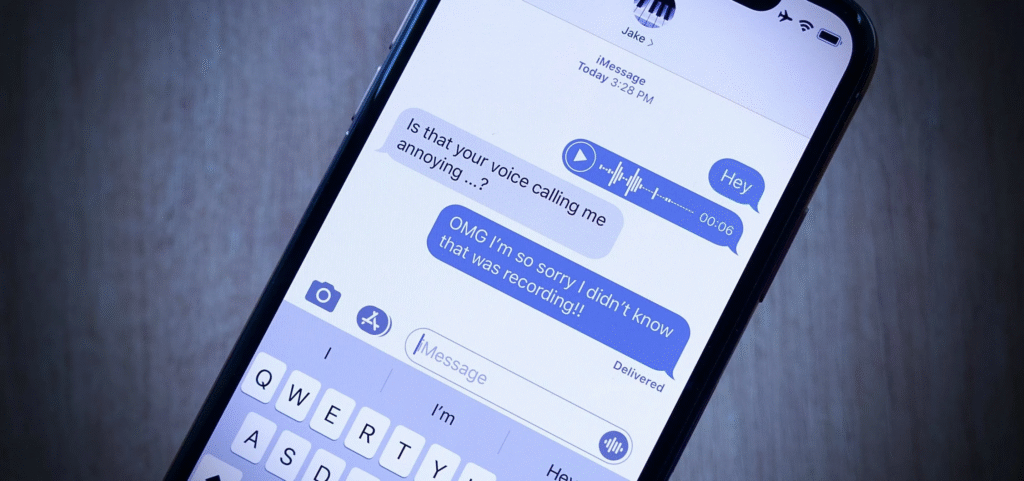
Audio messages offer a personal way to share tone and emotion when text cannot convey how we feel. Apple’s Messages app lets users send spoken messages without tapping a button simply by raising the iPhone to the ear. That feature can lead to surprise recordings that capture private sounds or conversations without warning. Many users only realise an audio clip has been recorded when they see it queued to send.
Contents
  • How Raise to Listen Works
  • Why Accidents Happen
  • How to Disable Raise to Listen
  • How to Manage Accidental Clips
Messages
Image Source: Gadget Hacks

How Raise to Listen Works

When an audio message arrives in Messages, you can lift the iPhone to your ear and listen to it immediately. If you keep the app open and raise the phone again, the app will switch into record mode and capture your voice or any ambient sound. The function is designed to make it easy to reply without tapping the microphone icon on the keyboard.

Why Accidents Happen

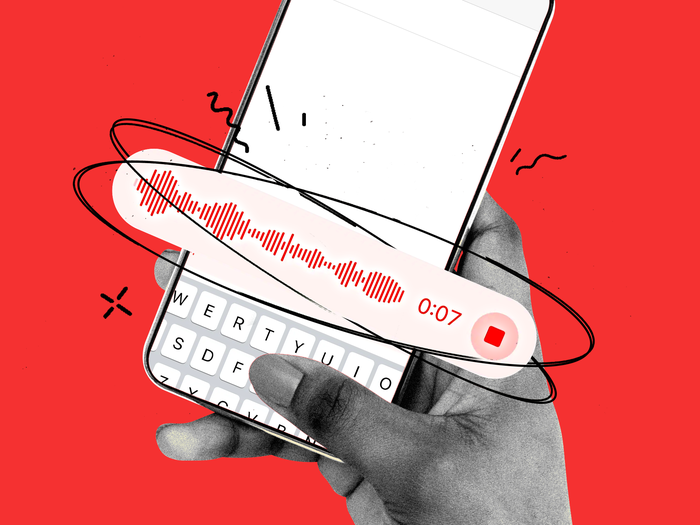
If you hold the iPhone near your face after listening to an audio clip, you may trigger a new recording. Many do not know that the same motion that plays audio can start recording. The phone may stay in record mode until you turn it off again. Those extra seconds of sound may pick up private moments in a pocket purse or on a desk. The app then waits to send what it has recorded.

How to Disable Raise to Listen

Tap Open Settings on your iPad or iPhone. Scroll, then choose Messages. The section Audio Messages can be found in the list. There you will see a switch for Raise to Listen. Slide the switch off so that it no longer lights up. The latter prevents the occurrence of the gesture that fires the recorder when you bring the device up. You will also have the possibility to send audio messages by tapping the plus sign to the right of the text field and selecting the Audio option.

How to Manage Accidental Clips

After you see an audio clip, you can tap it to play and review what it contains. If it is not intended, you can delete it before sending. Tap and hold the clip, then choose Delete Message. If you have already sent it, you can press and hold on the sent clip within a few seconds and select Unsend. The recipient may still have seen or heard a preview, but the clip will vanish from their view as soon as you act.
Messages
Image Source: Business Insider

Switching the Raise to Listen off minimizes the possibility of unsolicited recordings and ensures that your actual conversation in Messages remains on what you actually mean to discuss. Have more peace of mind, knowing that all audio messages are those that you initiated.

TAGGED:AppleiOS
Share This Article
Facebook Reddit Copy Link Print
Share
Salman Akhtar
By Salman Akhtar
View enlightening tech pieces written by Salman Keep up with the most recent news, advice, and trends in the field of technology.

Let's Connect

FacebookLike
XFollow
PinterestPin
InstagramFollow
Google NewsFollow
FlipboardFollow

Popular Posts

Обзор 1хбет: официальный сайт, линия и роспись ставок на спорт

The Tech Basic

Jakie gry obejmuje promocja ’50 free spins’ w Mostbet?

The Tech Basic

Starzspins Deutschland: Eine umfassende Übersicht über neue Spiele und ihre Features

The Tech Basic

Cazeus Casino Chile: guía completa para comenzar a jugar en 2026

The Tech Basic

You Might Also Like

iOS 26
How To

How iOS 26 Prioritizes Alerts With Apple Intelligence

Mobile Game Installs
News

Mobile Game Installs Drop but Spending Climbs in 2025

Galaxy S26
News

Samsung Reinvents AI on Galaxy S26 With Triple Assistants

Apple
News

Apple Hits New Sales Peak in Europe While Demand Softens Elsewhere

Social Networks

Facebook-f Twitter Instagram Pinterest Rss

Company

  • About Us
  • Our Team
  • Contact Us

Policies

  • Disclaimer
  • Privacy Policy
  • Cookies Policy
Latest
Microsoft Launches Copilot Tasks Research Preview
Lenovo Teases Foldable Legion Go With 11.6 Inch Screen
Instagram Will Tell Parents When a Teen Searches for Suicide or Self Harm
Nvidia posts $68.1B quarter as AI boom accelerates Q4 growth
Gemini Automation Books Rides on Galaxy S26 and Pixel 10

© 2024 The Tech Basic INC. 700 – 2 Park Avenue New York, NY.

TTB White LOGO TB
Follow US
Welcome Back!

Sign in to your account

Username or Email Address
Password

Lost your password?

Not a member? Sign Up





