

The iPad Smart Keyboard™ is a great accessory for boosting productivity, and it helps you type fast whether you are sitting at your desk or on the move. However, what happens if your iPad keyboard ceases to function or you are given the ‘Accessory Not Supported’ message? Do not worry, you have several options for fixing things if they get out of whack. This guide has some steps that will help you to fix your iPad keyboard not working issues and make it run normally.
- Check Your iPad Model Compatibility
- Keep Your iPad Updated
- Inspect the Smart Connector
- Reconnect and Restart Your iPad
- Restore to Factory Settings
- Remove Cases or Covers
- Solutions for Bluetooth Keyboards
- Fixing Virtual Keyboard Issues
- What If the iPad Keyboard Is Lagging?
- When All Else Fails, Contact Support
Please follow us on Facebook and Twitter.
Check Your iPad Model Compatibility
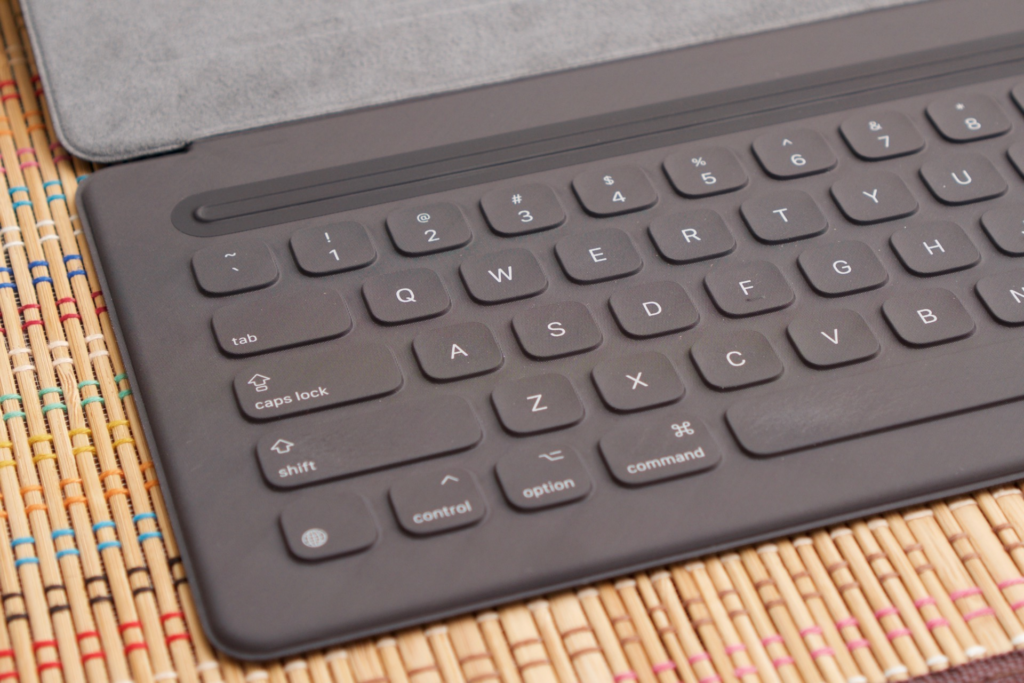
Some iPads and Smart Keyboards do not work with others. Before purchasing, make sure your iPad model has a compatible type of keyboard with your Smart Keyboard or Smart Keyboard Folio™.
The Smart Keyboard works with these models:
- iPad (7th, 8th, 9th generations)
- iPad Air® (3rd generation)
- iPad Pro® 9.7-inch, 10.5-inch, and 12.9-inch (1st and 2nd generation)
The Smart Keyboard Folio supports:
- iPad Air (4th and 5th generations)
- iPad Pro 11-inch (1st, 2nd, 3rd generation)
- iPad Pro 12.9-inch (3rd, 4th, and 5th generation)
For Magic Keyboard Folio, compatibility is limited to the iPad (10th generation).
Keep Your iPad Updated
It can often run out of the latest version of iPadOS® to resolve. Go to Settings > General > Software Update to see if there are any updates available. If you want to use Magic Keyboard, you need at least iPadOS 14.5.

Inspect the Smart Connector
The Smart Keyboard is connected to your iPad with the Smart Connector (to be precise, three magnetic contact points on both devices). The iPad keyboard may stop working due to dirt or a loose connection. Before reattaching the keyboard try to clean the connectors by using a microfiber cloth or compressed air.
Reconnect and Restart Your iPad
Many issues are fixed by a quick restart. Switch off your iPad, unplug the keyboard, turn on the device, and plug the keyboard back in. If that does not work, try a force restart.
For iPads without a Home button:
- Press Volume Up, then Volume Down.
- Hold the Top button until the device restarts.
For iPads with a Home button:
- Hold the Top and Home buttons simultaneously until the Apple logo appears.
Restore to Factory Settings
If this does not solve the problem, you may restore your iPad to factory settings. But, before doing anything, make sure you get your data backed up, so you don’t lose critical files.
- Go to Settings > General > Reset > Erase All Content and Settings.
- Select Backup then Erase if you want to save your data to iCloud®, or choose Erase Now to proceed directly.
After the reset, you can restore your previous data or set up the iPad as new.
Remove Cases or Covers
If you are using a Smart Keyboard Folio, or Magic Keyboard, make sure you remove any other cases or covers that may be preventing the device from connecting. If that does not work sometimes, then you just need to ensure that you have clear contact with the Smart Connector.
Solutions for Bluetooth Keyboards
If you are using a Bluetooth keyboard and it seems not to be working, unpair and re-pair the device. Tap the ‘i’ icon for the keyboard, then choose Forget This Device in Settings > Bluetooth. Turn on Bluetooth, select the device, then follow the on-screen prompts to re-pair the keyboard.
Fixing Virtual Keyboard Issues
If your iPad’s on-screen keyboard is stuck in the middle or has disappeared, here’s how to resolve it:
- Keyboard in the Middle of the Screen: Press the keyboard icon and tap Dock to return it to the bottom.
- Disappearing Keyboard: Disconnect any Bluetooth keyboards and restart your iPad. If the issue persists, try resetting the Keyboard Dictionary via Settings > General > Reset.
Split keyboards can also cause confusion. To disable this feature, go to Settings > General > Keyboard and turn off Split Keyboard.
What If the iPad Keyboard Is Lagging?
Heavy apps may run in the background and you can see typing delays. Swipe up from the bottom to close all apps and double tap the home button to exit all apps then swipe away all apps to exit. Uninstall any app that you believe might be lagging, and see if the problem disappears.
Disabling certain features can also improve performance:
- Reachability: Turn it off under Settings > General > Accessibility.
- Zoom: Disable it under Settings > Accessibility > Vision.
- iCloud Drive: Try turning it off via Settings > Apple ID > iCloud.
When All Else Fails, Contact Support
At that point, if none of these solutions work, it might be time to contact Apple Support. They can tell if something is locked down to the hardware or locked down to the software.








