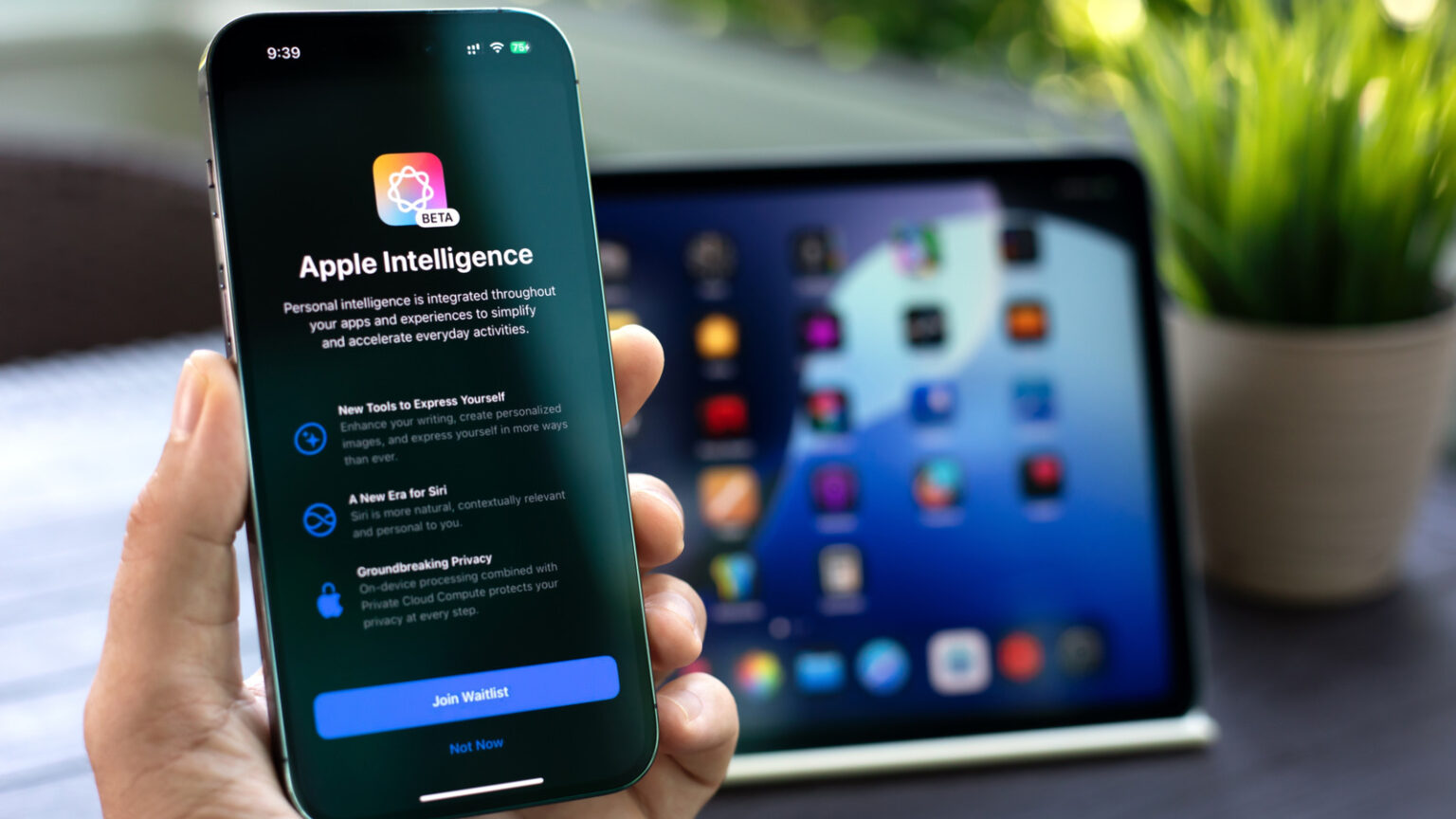

Apple adds new intelligence features to its devices with every major update. Some people like those features. Others prefer not to use them. If you do not use Apple Intelligence, you can switch it off. Many users find the setting flips back on after an update. This guide shows how to disable Apple Intelligence on iPhone, iPad, and Mac. It also explains how to check how much storage the feature uses and how to reclaim that space.
- Why you might want to turn Apple Intelligence off
- How to switch Apple Intelligence off on iPhone and iPad
- How to switch Apple Intelligence off on Mac
- How to check the storage used by Apple Intelligence
- How to reclaim space after the models have already downloaded
- Why the setting may come back after an update
- Practical tips to make this easier
- Balance convenience against storage and privacy
- Final checks for troubleshooting
Why you might want to turn Apple Intelligence off
Apple Intelligence is installed on large device models. Those files can take multiple gigabytes. On phones and tablets, that is a large share of available space. On Macs, the models can use a great deal of unified memory. If you do not use the writing tools, the Image Playground, or other features, the local model still uses space. Turning Apple Intelligence off prevents the models from installing. That can free storage and reduce background memory use.

How to switch Apple Intelligence off on iPhone and iPad
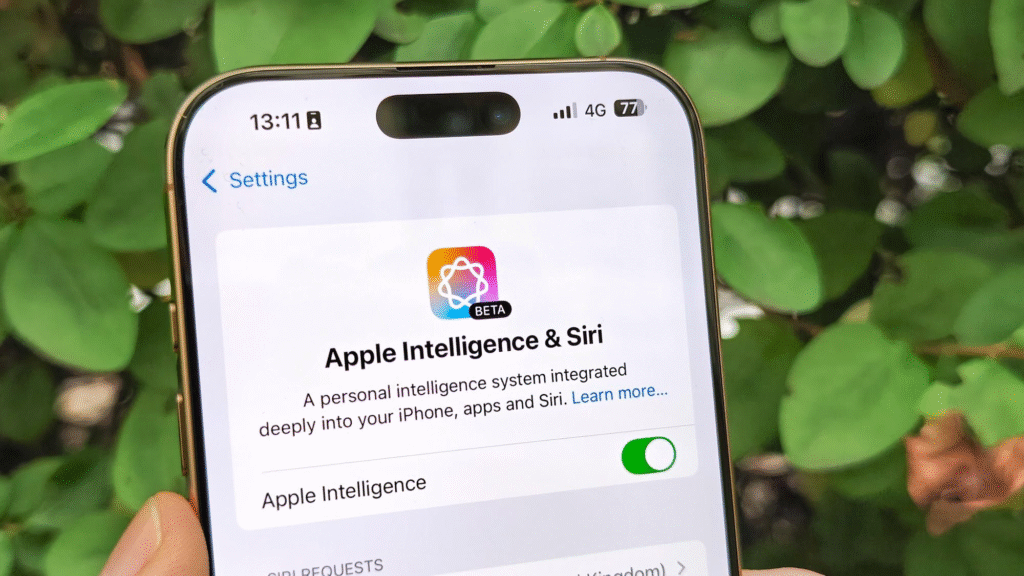
Open Settings on your iPhone or iPad. Scroll until you find Apple Intelligence and Siri. Tap that entry. Turn off the Apple Intelligence toggle at the top. Give me a little time to fix the change. Reboot the device once you change it so that the setting can be applied cleanly by the system.
How to switch Apple Intelligence off on Mac
Open System Settings on your Mac. Select Apple Intelligence and Siri in the sidebar. Toggle the Apple Intelligence option off. Restart the Mac. A restart helps clear any model processes that may still be cached in memory.
How to check the storage used by Apple Intelligence
Open Settings, then choose General, then iPhone Storage on your iPhone or iPad. Scroll to the bottom and tap iOS. The system will show a breakdown that includes large model files. On Mac, open System Settings then choose General, then Storage. Click the info button next to macOS to see a detailed list of large files. Look for entries that list Apple Intelligence or on-device model data to see exact sizes. Reports have found that the models can occupy several gigabytes on each device.
How to reclaim space after the models have already downloaded
Turn Apple Intelligence off and restart the device. Next, check the storage view described above. On iPhone and iPad, use the storage tools to clear caches and review large app data. On Mac, identify the large model files in the storage breakdown and remove them carefully. Do not delete random system files. Before removing files in the system folder, make a backup of your data. Always seek help when you do not know how to do something, call Apple support or an experienced technician.
Why the setting may come back after an update
Major operating system updates often reenable features to let users try them. The update process can reinstall on device models or restore defaults. That is why many users find Apple Intelligence enabled after they update. The safest way to prevent this is to run the off switch after a major update. Another option is to delay installing major releases until you are ready to run through your settings again.
Practical tips to make this easier
Pause automatic major updates if you want to choose when to install new system software. Have a cheat sheet with the steps that need to be followed in shutting down the Apple Intelligence and restarting the device. Pin this guide or make a note of it so that you can breeze through the steps after every major update. If you use a managed device, ask your administrator if a policy forces settings. Corporate device policies can reenable features automatically.
Balance convenience against storage and privacy
Turning Apple Intelligence off removes local AI tools and saves space. It also reduces the chance that large models will use unified memory on Macs. If you rely on the AI writing tools, image tools, or other features, you will lose that immediate convenience after you turn the feature off. Choose the option that matches your priorities for storage privacy and feature access.
Final checks for troubleshooting
In case Apple Intelligence switches back on as soon as you switch it off, go to profiles or device management, which may want to force settings. Make sure that you are not subscribed to a beta program that trims defaults more frequently. In those cases, when you are not sure, call Apple support. They can assist you in deleting model files without any threat and demonstrate the steps that cover your exact device and operating system version.