
Most Apple Silicon Macs with 16 gigabytes of unified memory can run the 20 billion parameter model if you use a compressed format. The model will be slow on very old machines. A machine with more memory and active Metal acceleration will feel faster. The 120 billion parameter model needs much more memory and is not practical on most laptops.
Two popular local tools will get you started quickly. LM Studio provides a visual interface to run models. Ollama offers a simple command line and local API for apps. Both tools use Apple acceleration when possible, and both can download the right model files or make them available for you to add. OpenAI and other guides show how to run GPT OSS models with these tools.

How to run the model with Ollama
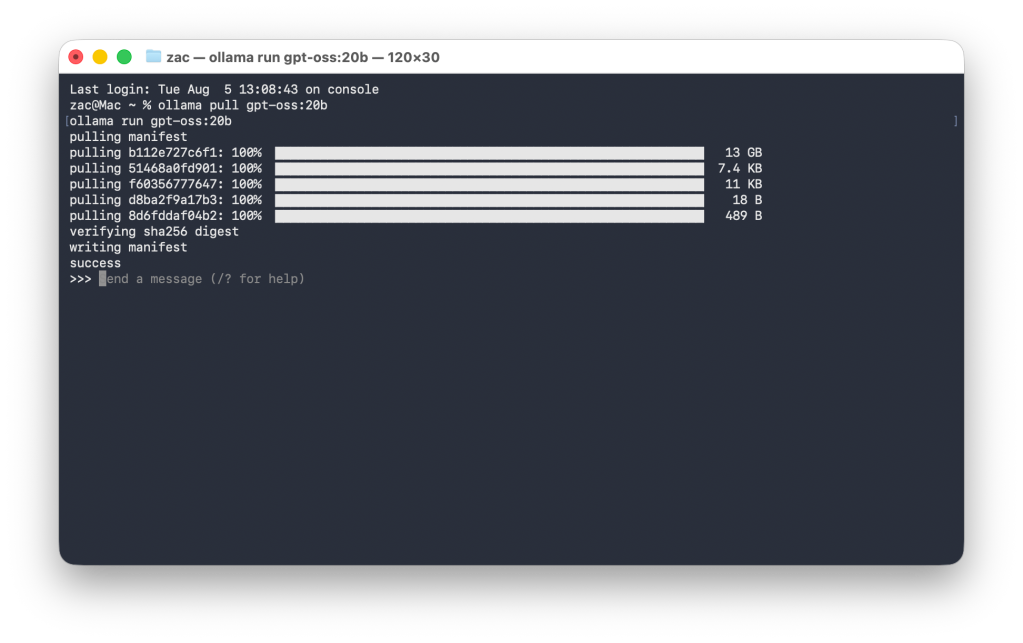
Install Ollama from its official site and follow the Mac installer instructions. Open the Terminal app. Type the command ollama run gpt oss 20b. The tool will download the quantized model and prepare it for local use. Wait while the model unpacks and loads. When the prompt appears, you can start chatting. Ollama also supports an API so you can connect the model to local scripts and apps.
How to use LM Studio instead
Download LM Studio for macOS. Launch the app and choose the option to add a new model. Pick GPT OSS 20b from the available list or import the model files you downloaded. The app shows a chat window and developer options for prompts and local APIs. LM Studio also helps with quantization and lets you test models in a visual way. This can be easier if you prefer a point-and-click interface.
Quantization and memory tricks
Quantizing the model reduces memory needs and makes local runs possible. The GPT OSS 20b model is offered in a four-bit format that cuts memory use dramatically while keeping quality high. If your Mac has only 16 gigabytes of memory, use a quantized 20 billion model. If you have more memory, you can try larger or less compressed variants for better speed and quality.
Performance and heat advice
Running a large model is demanding. Expect your Mac to use more power and to run warmer during a session. Close memory-heavy apps and let the Mac cool between long runs. If you test on a MacBook Air, know that it will get warm like a demanding game. For long or heavy work, prefer a desktop Mac or a laptop with good cooling.
Tips to improve responsiveness
Enable Metal and ML frameworks where the app offers that option. Use the distilled or optimized builds if they are available. Reduce the chat context window in case you require quicker responses. When possible, keep the model localized, feed it very small pieces of text. All these tips minimize memory load and enable the Mac to react quickly.
Common gotchas and how to avoid them
Do not run these builds on a mission-critical device without a backup. Download models only from trusted sources. Quantized files save space but can sometimes change how the model answers. If a session seems wrong, restart the model and try a shorter prompt. Follow official documentation from the model publisher and from the app you use.
The 20 billion parameter model is strong for writing help with simple coding tasks and research summaries. It can reason well for many everyday use cases. It is not the fastest option versus cloud alternatives. For long-form coding or the hardest reasoning tasks, a cloud model may still be faster and more polished.
Privacy and licensing
OpenAI released these models under an Apache license that allows use and modification. Running the model locally means your input stays on your device unless you choose otherwise. Read the model card and the tool terms so you understand any usage limits or safety notes.
Running a local ChatGPT-style assistant on your Mac is now within reach for many people. If privacy and control matter more than raw cloud speed, then GPT OSS 20b is a practical choice. Test with small prompts at first and then expand to longer tasks when you are confident about performance and stability.