

TTB White LOGO TB
  • News
  • PC & Hardware
  • Mobiles
  • Gaming
  • Electronics
  • Gadget
  • Reviews
  • How To
  • Login
  • Sign Up
Trending
Starzspins Deutschland: Eine umfassende Übersicht über neue Spiele und ihre Features
Cazeus Casino Chile: guía completa para comenzar a jugar en 2026
Glorion Casino België: ontdek de spannende wereld van live casino spellen
Discover the advantages of using the FunPari O’zbekiston mobile app for instant access to
Rainbet Casino France : débloquez des bonus incroyables en 2026
Sunday, Aug 9, 2026
The Tech BasicThe Tech Basic
Font ResizerAa
Search
  • News
  • PC & Hardware
  • Mobiles
  • Gaming
  • Electronics
  • Gadget
  • Reviews
  • How To
Follow US
iOS 18
The Tech Basic > How To > How to Turn Off Your iPhone in iOS 18: 4 Simple Methods
How To

How to Turn Off Your iPhone in iOS 18: 4 Simple Methods

Emeka Victor
Last updated: 28 March 2025 22:46
Emeka Victor
Share
Image Source: MakeUseOf
SHARE

Turning your iPhone to power off requires different steps than simply locking the screen. Shutting off your device is possible through different methods in iOS 18, regardless of travel needs or repair or troubleshooting purposes. While some methods have existed for years, Apple’s latest update adds a new, easier option. Here is your complete guide to shutting down your iPhone.

Method 1: Use the Physical Buttons

The method is applicable to every iPhone model despite its iOS version being iOS 18.

  1. Press and hold the Volume Up button (on the left side) and the Side button (on the right side) at the same time.
  2. Keep holding both buttons until the power-off slider appears on the screen.
  3. Swipe the slider from left to right to turn off your iPhone.

This method also works if your screen is frozen. It forces the iPhone to restart if needed.
iOS 18
Image Source: 91Mobiles

Method 2: Ask Siri to Turn Off Your iPhone

Using Siri permits voice-based access to power down your iPhone.

  1. Press and hold the Side button to activate Siri.
  2. Say, “Siri, power off my iPhone.”
  3. Siri will ask you to confirm. Tap the on-screen button to shut down the device.

No Voice? No Problem

The following practice enables you to communicate without verbal speech:

  1. Quickly press the Volume Up button, then the Volume Down button.
  2. Press and hold the Side button until the power-off slider appears.
  3. Swipe the slider to turn off the iPhone.

Method 3: Use the Settings Menu

This method works on all iPhones, including older models.

  1. Open the Settings app.
  2. Tap General.
  3. Scroll to the bottom and select Shut Down.
  4. Swipe the slider to power off.

Method 4: The New iOS 18 Control Center Feature

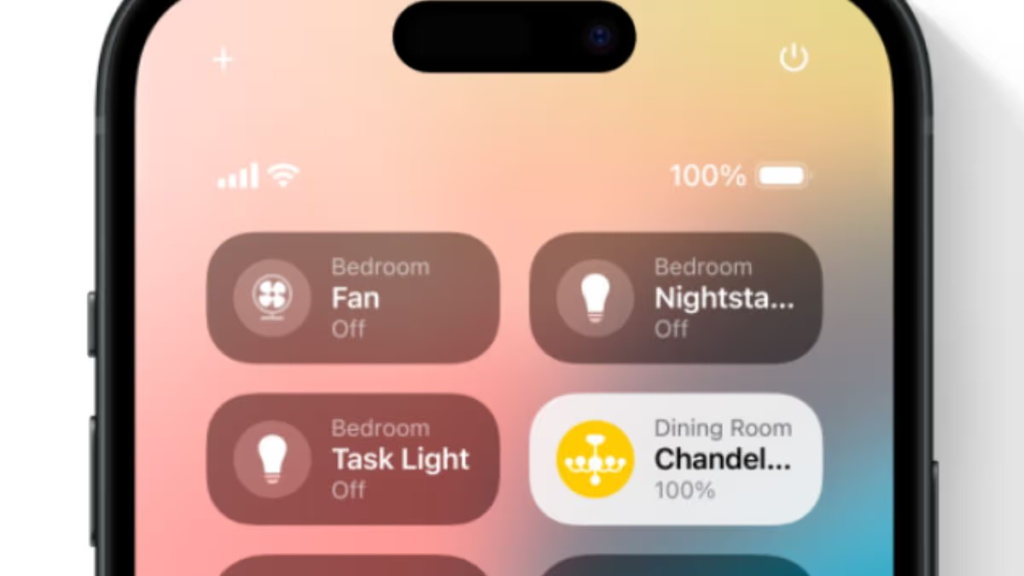
iOS 18 adds a quick shutdown button to the Control Center.

  1. Swipe down from the top-right corner of your screen to open the Control Center.
  2. Look for the power button icon (a circle with a line at the top).
  3. Press and hold the icon until the slider appears.
  4. Swipe to turn off your iPhone.

This is the easiest method in iOS 18, but Apple does not advertise it.

Why So Many Options?

Apple has always made it a bit tricky to find the power-off option. Former CEO Steve Jobs reportedly disliked including obvious off switches, preferring devices to feel “always ready.” Over time, Apple added multiple shutdown methods to handle different situations, like frozen screens or voice commands.
iOS 18
Image Source: Tom’s Guide

Which Method Should You Use?

  • For speed: Use the new Control Center slider in iOS 18.
  • For frozen screens: Use the physical buttons (Volume Up + Side button).
  • Hands-free: Ask Siri to power it down.

All methods ensure your iPhone shuts down safely. Remember, turning it off completely saves battery during long storage or flights. With iOS 18, Apple continues its tradition of hiding useful features in plain sight. Now that you know these tricks, you can power off your iPhone faster than ever.

TAGGED:Apple
Share This Article
Facebook Reddit Copy Link Print
Share
Emeka Victor
By Emeka Victor
Follow:
Emeka Victor is a tech writer and journalist who loves exploring cultures and food. He tells exciting stories about technology and how it affects people. Making tech news simple and interesting for everyone to understand.

Let's Connect

FacebookLike
XFollow
PinterestPin
InstagramFollow
Google NewsFollow
FlipboardFollow

Popular Posts

Starzspins Deutschland: Eine umfassende Übersicht über neue Spiele und ihre Features

The Tech Basic

Cazeus Casino Chile: guía completa para comenzar a jugar en 2026

The Tech Basic

Glorion Casino België: ontdek de spannende wereld van live casino spellen

The Tech Basic

Discover the advantages of using the FunPari O’zbekiston mobile app for instant access to

The Tech Basic

You Might Also Like

iOS 26
How To

How iOS 26 Prioritizes Alerts With Apple Intelligence

Mobile Game Installs
News

Mobile Game Installs Drop but Spending Climbs in 2025

Galaxy S26
News

Samsung Reinvents AI on Galaxy S26 With Triple Assistants

Apple
News

Apple Hits New Sales Peak in Europe While Demand Softens Elsewhere

Social Networks

Facebook-f Twitter Instagram Pinterest Rss

Company

  • About Us
  • Our Team
  • Contact Us

Policies

  • Disclaimer
  • Privacy Policy
  • Cookies Policy
Latest
Microsoft Launches Copilot Tasks Research Preview
Lenovo Teases Foldable Legion Go With 11.6 Inch Screen
Instagram Will Tell Parents When a Teen Searches for Suicide or Self Harm
Nvidia posts $68.1B quarter as AI boom accelerates Q4 growth
Gemini Automation Books Rides on Galaxy S26 and Pixel 10

© 2024 The Tech Basic INC. 700 – 2 Park Avenue New York, NY.

TTB White LOGO TB
Follow US
Welcome Back!

Sign in to your account

Username or Email Address
Password

Lost your password?

Not a member? Sign Up