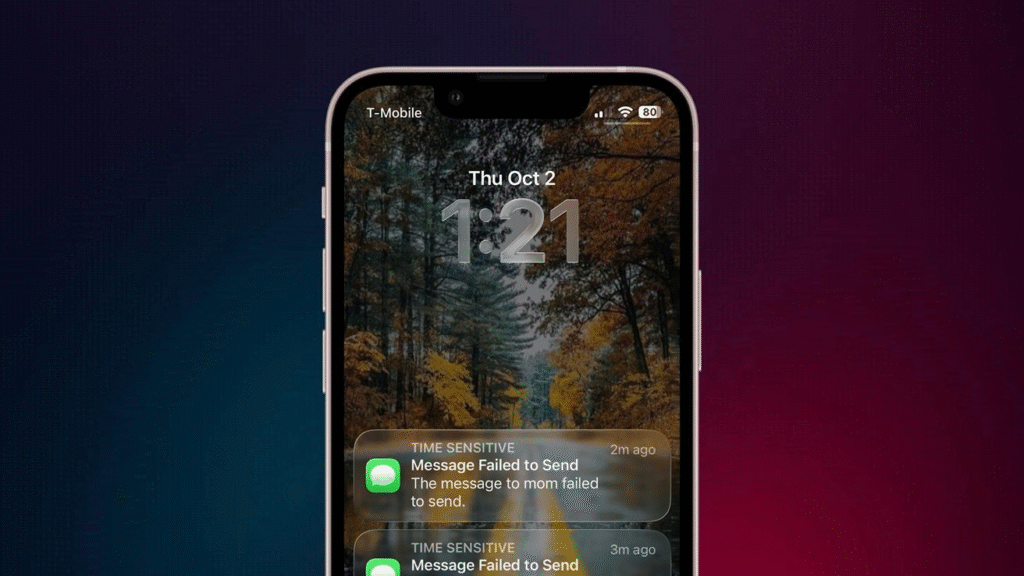
Some iPhone users on iOS 26 cannot activate iMessage with their phone number. Messages may fail to send or may appear as green bubble SMS texts. Often, the problem is an inactive SIM that shares the same number as an active SIM. Follow the steps below to restore iMessage and keep your messages working.
Quick Fix Steps
Tap Cellular and select Open Settings. Find several SIM or eSIM profiles. In case you discover a dead physical SIM, take it out of your phone. In case the inactive profile is an eSIM tap Delete to delete it. Once removed, go back to Settings and then tap Apps, then Messages. Tap Send and Receive and choose your phone number to turn on iMessage. Unless the number enables iMessage to turn off and on. Reboot the iPhone and try. Make sure that your carrier supports SMS enabling messages. It needs an operational SMS route.
If That Fails
Install any updates to carrier settings in Settings, then General, then About. Disability out of your Apple ID in Settings, then sign in again. Reset network settings in Settings, then General, then Transfer or Reset Device, then Reset Network Settings. In case still no activation, then call your carrier to confirm the SIM and the phone number. Assuming that you have a carrier that confirms that the line is active, you should call Apple Support to get step-by-step assistance. Always make a copy of your device before making any significant changes.
This has assisted numerous users in reactivating iMessage in iOS 26. In case the problem recurs, it is advisable to retain the dormant SIM and update it at regular intervals. Test with another Wi Fi network as well, and Wi Fi off. Attempt to use the cellular network only to activate iMessage. Also, carrier delays can be delayed by up to 24 hours.