
Signing up for Signal on the phone and using a phone number is popular among most users. You can enter a username that will allow others to see you without your number. First, open the Signal app and go to Settings by tapping your profile icon. Then tap the option that shows your profile. You will see a place that starts with an at sign. Tap that to create a username. Type a short name you like. After you save it people can search for you by name and not your number.
- Hide Your Phone Number From Everyone
- Change Your Profile Name and Profile Photo
- Send Messages and Make Calls Using Your Username
- Share a QR Code for Others to Add You Quickly
- Give Contacts a Nickname and Add Notes
- Set Messages to Disappear Automatically
- Lock the App With a Screen Lock
- Link Signal to a Computer or Tablet
- Keep Your Chat Simple and Secure
Hide Your Phone Number From Everyone
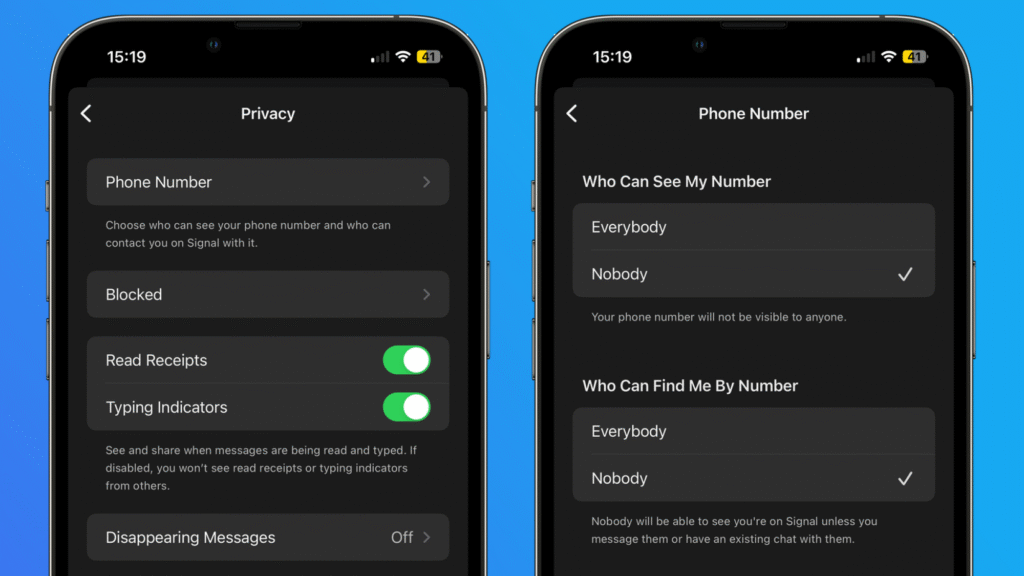
Signal lets you hide your number so nobody can find you by it. On Android, tap the three dots in the top right corner. Go to Settings and then Privacy. Next, tap the Phone Number option. On iPhone, open Settings, then tap Privacy, and then Phone Number. You will see two options. One is to let everyone find you by number. The other is to let no one find you. Tap the second to hide your number from everyone.
Change Your Profile Name and Profile Photo
You can set a name and photo that appear to your contacts. This can help friends know who is chatting. Open Signal and tap your profile icon. Then tap the person icon to change your name. Type any name you want. You can also tap Edit Photo to pick an image. You can change these at any time.
Send Messages and Make Calls Using Your Username
After you set a username, you can use it to start new chats and calls. In Signal, tap the message icon at the bottom of the screen. Then tap the pencil icon to start a new message. In the search bar, type a person’s username or phone number. You can do the same to make a voice call. Tap the phone icon and then tap the plus sign. In the list, type a username to find that person. You can also start a group chat. Tap New Group and then add people to it.
Share a QR Code for Others to Add You Quickly
Signal can make a QR code for your username so others can scan it to find you. Open Signal and tap your profile icon. Then tap the QR Code option. A square code will appear on your screen. You can save or share it by tapping the share button. When someone scans your code, they will see your profile name and can start a chat without knowing your number.
Give Contacts a Nickname and Add Notes
You can make names for people that you already know on Signal. This helps if someone has a long username, you will forget it. Open Signal and tap on a chat. Then tap the profile name at the top. You will see a space that says Nickname with a pencil icon next to it. Tap that and type a short name you like. You can also write a note about why you know this person.
Set Messages to Disappear Automatically
Signal can delete messages after a set time, so they do not stay forever. In Signal tap Settings, and then Privacy. Next, tap Disappearing Messages. You can pick a default time for new chats. Choose any time from thirty seconds to four weeks. You can also set a different time for each chat. In a chat, tap the person’s name or group name at the top. Then tap Disappearing Messages and pick a time.
Lock the App With a Screen Lock
You can add an extra lock so only you can open Signal on your phone. In Signal, open Settings and tap Privacy. Then tap Screen Lock. You will need to have a passcode or Touch ID enabled on your phone already. When you turn on Screen Lock, you set a delay before the app locks. You can choose to lock it as soon as you leave the app or after a set time.
Link Signal to a Computer or Tablet
You can use your Signal account on another device, like a computer or tablet. In Signa,l open Settings and tap Linked Devices. Then tap Link New Device. A QR code will appear on the other device. Scan it with your phone to link them. You can choose to sync your chat history up to 45 days old. Remember, each device can show your messages, so only link devices you trust.
Keep Your Chat Simple and Secure
Signal is built to keep your calls and messages private. You can make sure your phone number is hidden by using disappearing messages and locking the app with a passcode. You can also set usernames, share QR codes, and give people nicknames so you know who you are talking to. With these steps, you take control of your privacy while using Signal every day.